Posted on: 07/01/2025
in
This content is located in CAPS under System Technologies: Software for Grade 11.
Engaging students with tools that promote inclusivity can make technology concepts more relatable and practical. Teaching software designed for users with disabilities is a great way to showcase how technology can break barriers and enhance accessibility. In this post, we’ll explore how to teach about screen readers and voice recognition software in a dynamic and practical way.
Begin with a scenario that highlights the importance of accessibility. For example, ask students to imagine they have limited vision or motor skills and need a way to navigate the internet or compose text. This immediately creates a context for discussing assistive technologies.
Understanding Screen Readers
Screen readers are applications that convert text displayed on a computer screen into speech or Braille, aiding users with visual impairments.
Classroom Activity: Interactive Demo
- Simulation Exercise: Use a free screen reader such as NVDA (NonVisual Desktop Access) to demonstrate its features. Show how it reads text, navigates through menus, and provides auditory feedback for actions like selecting files or opening applications.
- Challenge Task: Blindfold students in pairs, where one student operates the screen reader while the other guides them verbally. This activity fosters empathy and provides hands-on experience with the tool.
Discuss Applications:
- Assist visually impaired users in reading websites or using email.
- Enhance independence by allowing access to online resources and communication platforms.
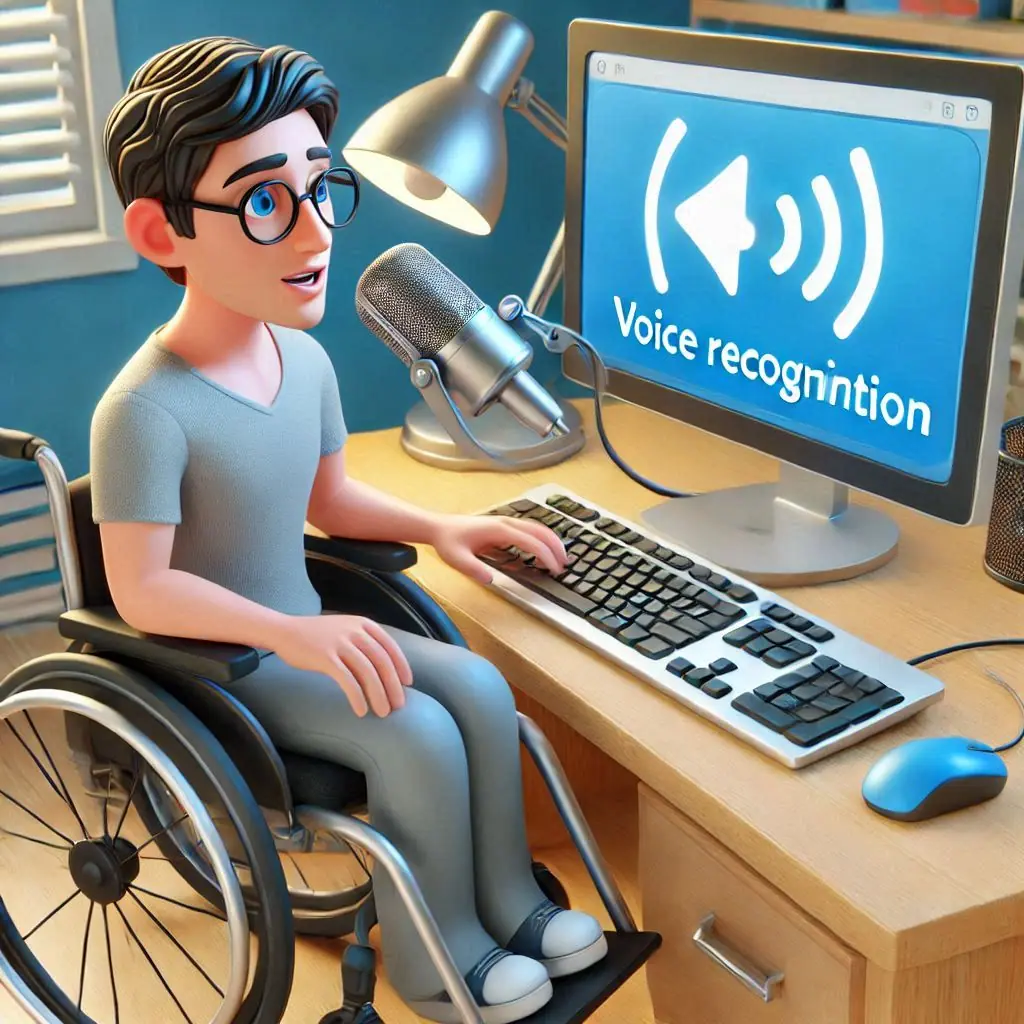
Exploring Voice Recognition Software
Voice recognition software converts spoken words into text or commands, assisting users with motor disabilities or those who find typing challenging.
Classroom Activity: Voice-to-Text Exploration
- Try It Out: Use built-in tools like Google Docs’ voice typing feature or Dragon NaturallySpeaking. Assign students to dictate a paragraph and observe the accuracy of the transcription.
- Command Navigation: Teach how voice recognition can be used to open programs, search online, or control settings using voice commands.
Real-Life Applications:
- Writing essays or reports without typing.
- Controlling smart home devices for physically disabled individuals.
Discussion and Reflection
- Inclusion Matters: Have students discuss how these technologies promote inclusivity.
- Problem Solving: Encourage brainstorming of other scenarios where assistive technologies could help, such as helping older adults or supporting language learning.
- Technology in Society: Link the discussion to broader societal impacts, highlighting how these tools empower users.
Tools and Resources
- Free Screen Readers: NVDA, JAWS (demo version), and VoiceOver (Mac).
- Free Voice Recognition: Google Docs, Windows Speech Recognition, or built-in smartphone assistants like Siri or Google Assistant.
Encourage students to explore these tools at home and think about how they might improve accessibility for different people in their communities.
This topic offers rich opportunities for practical exploration while promoting empathy and understanding. How have you introduced assistive technology in your teaching? Share your experience and tips below!