Death of the Disc: A Director’s Cut

Prompt: “Be a world-famous director and direct a movie with actors and props, all while keeping the storyline about the reason we don’t really use DVD/CD ROM drives on laptops and desktops anymore.”


🎞️ Scene 1: A Hollywood Tech Tale

[Opening shot]
The camera pans across a glittering, hyper-futuristic movie studio. Neon lights flare, robotic cameras buzz, and an enormous clapperboard slams shut:
“Scene 1: Death of the Disc.”

🎬 Enter Chaz McByte, the coolest director in Digital Hollywood. With his slicked-back hair, pixel shades, and custom-made headset, he turns to the cast — a crew of anthropomorphic laptops and desktops — and shouts:

“Alright team, let’s give this old tech the send-off of the century! Action!”

[Dramatic orchestral score begins…]


🎭 The Plot:

Flashback: DVD’s Golden Days
In a dramatic montage, DVDs and CD-ROMs strut down a red carpet. People cheer. Laptops open wide with pride, showing off their shiny disc drives. It was the age of burning, reading, and installing from the mighty disc.

🎤 “Back in the day,” says a grizzled desktop in a flashback, “I used to install entire games and movies off these bad boys!”

But the music dims.


⚔️ Conflict: Enter Modern Tech

Suddenly, a new hero bursts in: SSD Flashbolt, a speedy storage drive wearing sleek chrome armour. Cloud icons swirl in behind him like a digital entourage.

“Old friend,” Flashbolt says solemnly, placing a USB-C hand on the DVD’s shoulder, “You were good… but times have changed.”

The DVD spins nervously.

“But… but people still love me!”

“Not enough,” interrupts Cloudia, a radiant holographic assistant. “You’re big, slow, easily scratched, and—let’s face it—most laptops have gone on a no-disc diet.”


🎬 The Director’s Monologue (a cinematic moment):

Chaz McByte walks onto the stage, holding a dramatic spotlight.

“We no longer need your bulk.
We’ve embraced the slim.
With streaming, flash drives, cloud syncing and lightning-fast SSDs…
…there’s simply no room for the disc in our bags or our BIOS!”


📦 Resolution: The Farewell

In a moving final scene, the old DVD drives are gently packed into crates marked “Outdated Props”. A sad violin plays.
A modern ultrabook walks past and whispers:

“You paved the way, disc. But now… we stream ahead.”

The sky glows with Wi-Fi signals. Drones zoom by carrying cloud storage crates. The cast bows. The curtain falls.

[CREDITS ROLL]


🍿 Moral of the Movie:

We don’t use DVD/CD-ROM drives much anymore because:

  • They’re bulky and slow

  • Easily damaged

  • Limited storage capacity

  • Most media is now streamed, downloaded, or stored in the cloud

  • USBs and SSDs are smaller, faster, and way more convenient

  • Modern laptops favour thin design – and disc drives don’t fit the vibe

🎟️ Coming soon to a lesson near you… “Revenge of the Floppy Disk (Not Really)”
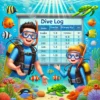
The Deep Dive into Primary Keys: Unlocking the Ocean of Data!

Prompt:
Teach me about the purpose of a Primary Key in a database. You are a scuba instructor, and I am your very first student learning to dive.

The Deep Dive Explanation:

🎣 Scene opens beneath the waves of the digital ocean…


🧜‍♂️ [In the smooth, salt-soaked voice of your scuba instructor, Captain Keyton]

“Alright, rookie diver, listen up! Down here in the vast blue database sea, everything’s got a place, and everything must be found. Just like each fish has a tag, and each treasure chest has a unique lock — each row of data in our underwater database needs its own ID. That’s where the Primary Key comes in!”


🌊 Imagine our database is a coral reef, filled with thousands of sea creatures (aka records). Each fish might look similar — some clownfish, some eels, lots of info about them like colour, size, and favourite seaweed snacks.

But! How do we tell one clownfish from another? 🐠

That’s when the Primary Key makes its grand splash!


🌟 Purpose of a Primary Key:

  1. 🏷️ Uniquely identifies each record in a table.
    Just like how every diver has a unique air tank ID or every sea turtle has a tracking number — no two are the same!

  2. 🚫 No Duplicates Allowed.
    A primary key must be unique — if two creatures had the same ID tag, we’d never know who’s who. Chaos under the sea!

  3. 🔒 Cannot be Empty (No Null values).
    If a fish has no tag, how will we track it through the data current? That’s a no-no, diver.

  4. 🧭 Makes searching faster.
    With a primary key, we can zoom straight to the data pearl we want, instead of searching every corner of the reef.


🎓 Example Dive Log Table

Dive ID (Primary Key) Dive Site Depth (m) Dive Time
001 Shark Alley 30 45 mins
002 Coral Canyon 20 35 mins
003 Wreck Haven 25 40 mins

🔑 See that Dive ID? That’s our primary key — no two dives will ever share it, even if they were at the same spot.


🧜‍♂️ “So, young diver, remember: when navigating the database depths, your primary key is your compass, your anchor, and your underwater passport all in one. Don’t leave the surface without it!”


💡 Moral of the (underwater) story:
A primary key keeps your data world in order — no drift, no confusion, just clean, trackable rows in the sea of information.

Teaching ‘All about Cookies’ for Grade 11

This content is located in CAPS under Internet Technologies: Internet and the WWW for Grade 11.

Cookies may seem like an abstract topic for students, but they are a practical, real-world part of internet usage that impacts almost every web interaction. Teaching Grade 11 learners about cookies offers an opportunity to demystify this concept and connect it to their everyday browsing habits, data privacy, and online experiences.

Making Cookies Tangible in the Classroom

Cookies can be explained as small text files stored on a user’s device by websites to remember information about their visit. To make this concept relatable, draw a parallel with a memory book that stores key details about a visitor to make future interactions more personalised.

Bring Cookies to Life with Visual Aids

  • Analogy Activity: Use physical sticky notes to simulate cookies. Write details like “username,” “preferences,” and “cart items” on notes and attach them to a learner’s shirt as they “browse” different desks (representing websites). Show how these notes help “websites” remember them when they return.
  • Digital Example: Visit a commonly used site (like a school website or news portal) and open the browser’s cookie storage settings to display what data is saved.

Exploring How Cookies Work

Break down the functionality of cookies:

  • Session Cookies: Temporary cookies that disappear after closing the browser. Compare these to short-term memory.
  • Persistent Cookies: These remain until manually deleted or they expire. Relate this to saving favourite contacts in a phone.
  • Third-Party Cookies: Stored by domains other than the website being visited, typically used for targeted ads. Discuss the ethical implications and privacy concerns.

In-Class Activities

  1. Cookie Classification Game: Prepare cookie “cards” with examples (e.g., “language preference,” “login session,” “ad preferences”). Ask students to group them into session, persistent, or third-party categories.
  2. Browser Exploration: Teach students to access cookie settings in a browser. Encourage them to delete specific cookies and revisit websites to observe the impact.

Privacy and Security

Cookies play a role in tracking and data privacy. Discuss:

  • Pop-Up Consent: Why websites request cookie permissions and what happens when users deny or allow them.
  • Tracking Concerns: Explain how third-party cookies enable targeted advertising, sometimes raising privacy issues.

Ethical Debate

Host a debate or discussion on:

  • Should websites limit third-party cookie usage?
  • Is tracking beneficial for customising online experiences or does it invade privacy?

Relating to the CAPS Curriculum

  • Introduce “Incognito” or “Private Browsing” modes to illustrate how they manage cookies differently.
  • Discuss the role of encryption and Secure Socket Layers (SSL) in keeping cookies secure during data transfer.

Simplifying Complex Terms

Use real-world analogies and interactive methods to clarify technical terms:

  • Cache vs Cookies: Cache stores website resources (like images) to load faster, while cookies store user data. Explain this as the difference between remembering the route to a friend’s house (cache) and remembering what snacks they like (cookies).

Encourage learners to reflect on their online behaviour and explore browser tools that manage cookies, empowering them to take charge of their data.