Games
Games Tools
Tools Exams
Exams Grade 10
 Grade 11
 Grade 12
 Resources
 Free Stuff
 Misc
Misc


From Boring to Byte-Sized Blockbusters: How I Transformed CAT Lessons with Creative CAT
The Struggle Every Tech Teacher Knows
“Input, process, output.”
It’s the classic teaching mantra for explaining computer systems.
But when you’re standing in front of a classroom, watching eyes glaze over as you click through another PowerPoint on hardware components… You start to wonder:
Isn’t there a better way?
In term 2, we did some revision again, and I didn’t want my learners to just memorise definitions. I wanted them to engage with the material—visually, emotionally, and creatively. I wanted them to laugh, imagine, explore, and fall in love with Computer Applications Technology (CAT), like I did.
That’s when I found Creative CAT.
Meet Creative CAT: The AI Co-Teacher I Never Knew I Needed
Creative CAT is an AI-powered tutor designed specifically for CAT educators—but with a wildly creative twist.
It doesn’t explain tech like a textbook. It reimagines it. TEXTBOOKS ARE BORING (My opinion). WE are NOT boring teachers and WE do NOT have a BORING subject!
Using storytelling, metaphor, poetry, theatre, and even full-blown musicals, Creative CAT turns topics like networks, processors, spreadsheets, and cybersecurity into unforgettable adventures.
And yes—it generates Pixar-style 3D cartoon images to match the lesson.
👉 Explore it yourself here: Creative CAT
The Lesson That Changed Everything
I uploaded a fairly standard PowerPoint on Extended Hardware Concepts—you know the drill: input devices, CPUs, RAM, monitors, storage…
Creative CAT responded with:
“Let’s turn this into a high school sitcom where each hardware component is a student at Silicon City High.”
And just like that, my classroom was transformed.
We had:
Corey CPU – the high-achieving class president

Rami RAM – the forgetful speedster who couldn’t stay still

Moni Tor – the fashionable diva who shows off everything

Stacey Storage – calm, quiet, and always prepared
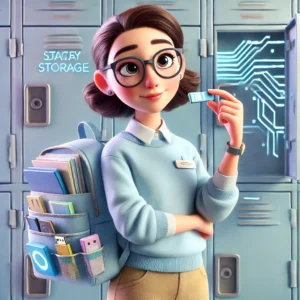
Inputta Keys – our energetic new girl typing out the gossip

Even better? Creative CAT generated a custom 3D cartoon image of these characters inside a neon-lit digital high school with lockers shaped like USB ports and circuit-board hallways.
It was like Pixar met PC basics—and my students were hooked.
The Reaction: Learning That Stuck
Suddenly, learners were referring to hardware by character name:
“Rami RAM is so forgetful!”
“Moni Tor displays everything we see, right?”
“Wait—Corey CPU has to process everyone’s tasks?”
They laughed, they remembered, they even acted out scenes based on the characters. And in doing so, they deeply internalised the core concepts—without me needing to repeat definitions ten times.
It was the most fun they’d ever had learning CAT (Well I think so!)
It was also the most effective lesson I’d ever taught.
Why You Should Use Creative CAT Too
Here’s what makes Creative CAT an essential tool for every tech educator:
✅ Instant engagement – It transforms even the driest content into theatre, music, or adventure.
✅ Tailored to CAT – Every topic fits the curriculum perfectly (Grade 10 to 12, theory and practical).
✅ Visual learning made exciting – Custom, Pixar-style 3D images anchor the lesson.
✅ No prep required – Just upload your topic or file, and Creative CAT does the rest.
✅ Pure magic – It makes learners care about the content—and remember it.
Whether you want to turn cloud computing into a fairy tale or teach file organisation as a spy mission, Creative CAT is the ultimate creative classroom assistant.
Try It Yourself
You don’t need to code or be a tech wizard to use it.
Just visit:
👉 https://chatgpt.com/g/g-67b9be29e14481919dda2e94a559fca7-creative-cat
Choose your topic.
Pick a style (drama, song, fairytale, courtroom, anything).
Sit back—and prepare to be amazed.
Final Thought
We use computers to connect, compute, and create.
Shouldn’t our teaching do the same?
Creative CAT helped me turn abstract theory into emotional storytelling. It brought life, colour, and curiosity into my classroom—and most importantly, it helped my learners see themselves in the subject matter.
If you’re a teacher who believes education should inspire, not just inform—this is your sign.
Try Creative CAT today. Your classroom will never be the same.