Mission: DATABASE – Houston, We Have Structured Data

📜 Prompt: Teach me about the concept of a database, in the style of a nerd from NASA preparing the astronauts for their first trip into space.

🎭 Content:
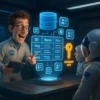
Scene: A sterile, sci-fi training room at NASA HQ. Lights dim. A bespectacled data nerd in a silver jumpsuit bursts in, holding a clipboard and a triple-shot espresso. He’s pumped. Too pumped. He’s about to brief the astronauts on one of the most vital systems on their ship — the DATABASE.


🚀 [ENTER: Nerdy Data Commander]
“ATTENTION, COSMIC CREW! Strap in. Secure your neural processors. We’re diving into the mothership of information storage: THE DATABASE! Dun-dun-duuuuun!”

He dramatically slams a hologram button. A 3D spinning disk appears mid-air, glowing with icons: fields, forms, tables.

🎙️ Nerd:
“A database, cadets, is like the Mission Control of your digital life. It’s where all your data lives — neat, tidy, categorised — not floating around like rogue asteroids in a digital nebula.”

“Imagine you’re collecting samples from Saturn’s rings. You can’t just throw them into your space sock drawer. NO! You use structured storage — neatly organised tables like metal trays in a space lab. Each tray holds a record — like a row in your data — and each sample has labelled compartments called fields.”

👨‍🚀 Astronaut: “Wait, so like Excel?”

🎙️ Nerd:
“EXCELLENT INTERJECTION, COSMONAUT KAREN! A spreadsheet is like a paper map of the galaxy. A database is the autopilot system – smarter, faster, and can run queries to fetch just the data you need, like asking: ‘Show me all oxygen levels above 30% on Mars between sols 12 and 18!’ BOOM. Delivered. Sorted. Filed. Like an AI butler in a space tuxedo.”

💾 Database Features:

  • Tables: Like space crates storing similar types of alien goo (e.g., “Crew”, “Missions”, “Alien Pizza Orders”).

  • Records: Rows – one full item of data, like a single crew member.

  • Fields: Columns – specific details, like “Name”, “Age”, “Favourite Planet”.

  • Primary Key: A unique ID for each record. No two Martians have the same tentacle print.

  • Queries: Custom searches, like “Find all red planets with breathable atmosphere and Wi-Fi.”

  • Forms: Friendly UIs to input data – because typing raw into tables is so… 1969.

  • Reports: Printed summaries, perfect for showing mission sponsors you didn’t nap through half the solar system.

🎙️ Nerd (suddenly serious):
“Without databases, data becomes space junk. Unsearchable. Unusable. Like a black hole of ‘Where did I put that thing?’ And trust me — we once lost a whole moon base’s sandwich inventory. Never again.”

🧠 Tech Truth Summary:
A database is an organised collection of data that allows you to easily store, search, sort, and retrieve information — like Mission Control for your digital world.

Tech Joke: Why did the astronaut break up with the database? It just wasn’t relational enough. 😎🚀

Teaching ‘Web Browsers’ for Grade 10

This content is located in CAPS under Internet Technologies: Internet and the WWW for Grade 10.

When teaching web browsers, it’s essential to make the topic engaging and relatable, especially given the growing importance of the internet in everyday life. Web browsers act as the gateway to the World Wide Web, enabling users to access, navigate, and interact with online resources. Here’s how to break down the concept and make it practical and relevant for your students.

What is a Web Browser?

Start by explaining that a web browser is software that allows users to access and view websites on the internet. Popular examples include Google Chrome, Mozilla Firefox, Microsoft Edge, and Safari. To make it relatable, ask students about the browsers they use at home or on their smartphones. Bring in real-world examples like opening Google to search for information or visiting social media platforms.

Purpose of a Web Browser:
Help students understand that web browsers are designed to:

  • Display content like text, images, and videos.
  • Provide tools for searching, navigating, and bookmarking pages.
  • Enable users to download and upload files.

Practical Classroom Activities

  1. Exploring the Browser Interface:
    • Open a browser on a classroom computer or use screenshots.
    • Show students the address bar, search bar, tabs, and bookmarks.
    • Let them experiment by entering URLs (e.g., www.wikipedia.org) and exploring basic navigation.
  2. Hands-On with Bookmarks:
    • Teach students how to bookmark a page they find useful.
    • Create a classroom project where each student bookmarks their favourite educational website. For under-resourced environments, use browsers available on donated or shared devices.
  3. Understanding URLs:
    • Discuss what a URL is (Uniform Resource Locator) and its components (protocol, domain, path).
    • Use a simple analogy: think of a URL as the address for a website, much like a street address for a house.
  4. Comparing Browsers:
    • If devices are available, let students compare two browsers (e.g., Chrome vs Edge). Ask them to test loading speeds and ease of navigation. If resources are limited, this can be a group discussion using a teacher-led demonstration.

Basic Browsing and Tabbed Browsing

Basic Browsing: Explain how to open a browser, navigate to a website, click on hyperlinks, and use the back, forward, and refresh buttons. Demonstrate searching for information using a search engine.

Advantages of Tabbed Browsing: Tabbed browsing allows users to open multiple websites in one browser window. Highlight these advantages:

  • Saves time by avoiding the need to switch between windows.
  • Helps compare information from different sources.
  • Keeps browsing organised.

Classroom Idea:
Ask students to research a topic (e.g., “Advantages of recycling”) by opening multiple tabs, each with a different website. Encourage them to compare the credibility of the information across the tabs.

Real-World Applications

  1. Simulating Real-World Tasks:
    Assign a task like planning a holiday. Students can use tabs to:

    • Open a travel website to find flights.
    • Open a hotel booking site.
    • Research local attractions.
  2. Discussing Add-Ons and Extensions:
    Briefly introduce browser extensions, like ad blockers or dictionaries, and explain how they enhance productivity.
  3. Interactive Game: Create a “treasure hunt” where students navigate through various websites to find specific information, using tabs and bookmarks.

Adapting to Under-Resourced Environments

For schools with limited internet or devices:

  • Use printed screenshots of browser interfaces.
  • Simulate browsing tasks using local intranet resources if available.
  • Conduct group discussions around hypothetical scenarios.

By grounding the lesson in real-world examples and providing opportunities for exploration, students will better appreciate the importance and functionality of web browsers.

How have you introduced web browsers in your classroom? Share your strategies and ideas in the comments to help other teachers bring this topic to life!