Games
Games Tools
Tools Exams
Exams Grade 10
 Grade 11
 Grade 12
 Resources
 Free Stuff
 Misc
Misc


Creative CAT Projects Inspired by Checkers Mini Shop Stickies
Turning Checkers Mini Shop Mania into Meaningful CAT Lessons
It all started rather innocently. My wife and I began collecting the Checkers Mini Shop Stickies for our nine-month-old son — and before we knew it, we were completely hooked. Each new mini sparked a bit of excitement (and maybe a touch of competition). Out of curiosity, I mentioned it to my Grade 11 learners, and to my surprise, they admitted that the obsession had spread to their households too!
That’s when the idea struck me — why not turn this shared craze into something educational? What if we could use these beloved mini stickies to teach real-world Computer Applications Technology (CAT) skills in a fun and creative way?
Here’s how that brainstorming session turned into a set of hands-on, engaging CAT projects that combine creativity, technology, and just a touch of nostalgia.
Teacher Tip 🧠
Let your learners bring their own Mini Shop collections to class. Use them as the starting point for each project — it instantly makes the work feel personal, relevant, and fun.
Project 1
🛒 Simulated Online Shop

Imagine a digital shop that looks and feels like a real e-commerce site – but without processing actual payments.
Project concept
Learners create a mock-up online shop where users browse items, add them to a cart, and “check out”. The site doesn’t process payments; instead, it simulates the experience of shopping.
CAT skills applied
- Web design: Build webpages using HTML and CSS.
- Database concepts: Simulate inventory and product details.
- Forms and interactivity: Add form elements to mimic a checkout process.
- Understand how online shopping systems flow in a safe, offline environment.
Project 2
🎮 Interactive Game or App

For a more advanced challenge, learners can transform their mini shop experience into a digital game or application.
Project concept
Using platforms like Scratch or Python, learners create a simple game where players collect or trade virtual stickies.
CAT skills applied
- Coding: Programme game logic – for example, a function that “adds” a sticky to a virtual collection.
- User interface design: Create interactive buttons, scoreboards, and menus.
- Problem-solving: Debug and refine their code as the project develops.
This type of project makes coding tangible, engaging, and rewarding.
Project 3
📊 Spreadsheet-Based Data Analysis
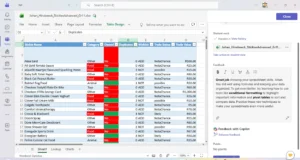
For those who love working with data, the mini stickies provide a perfect dataset.
Project concept
Learners catalogue their collection in a spreadsheet and use formulas to analyse and visualise their data.
CAT skills applied
- Formulas and functions: Use
COUNTIFto track duplicates orVLOOKUPto find specific brands. - Data validation: Add dropdown lists to standardise categories.
- Charts and graphs: Create pie charts or bar graphs to show brand or category distribution.
It’s a great way to teach data literacy in a context learners genuinely enjoy.
Project 4
📱 Marketing and Social Media Campaign
Finally, learners can channel their inner influencer and take on a digital marketing project.
Project concept
Learners design a social media campaign promoting the mini stickies, mimicking real-world Checkers advertising strategies.
CAT skills applied
- Content creation: Design graphics and edit short videos.
- Social media planning: Develop a posting schedule, research hashtags, and plan a content calendar.
- Video production: Record and edit clips — for example, a “mini haul”, “collection tour”, or “trade tips” video.
This project allows learners to see how brands use digital media to engage audiences — and how they can do it too.
🚀 How to Get Started
To get these projects rolling, you’ll need:
- A collection of Checkers Mini Shop Stickies
- Software tools such as Microsoft Office, a web browser, and a simple coding editor
- A camera or scanner to digitise the stickies
- A teacher or mentor with knowledge of the CAT curriculum