Teaching ‘Web Browsers’ for Grade 10

This content is located in CAPS under Internet Technologies: Internet and the WWW for Grade 10.

When teaching web browsers, it’s essential to make the topic engaging and relatable, especially given the growing importance of the internet in everyday life. Web browsers act as the gateway to the World Wide Web, enabling users to access, navigate, and interact with online resources. Here’s how to break down the concept and make it practical and relevant for your students.

What is a Web Browser?

Start by explaining that a web browser is software that allows users to access and view websites on the internet. Popular examples include Google Chrome, Mozilla Firefox, Microsoft Edge, and Safari. To make it relatable, ask students about the browsers they use at home or on their smartphones. Bring in real-world examples like opening Google to search for information or visiting social media platforms.

Purpose of a Web Browser:
Help students understand that web browsers are designed to:

  • Display content like text, images, and videos.
  • Provide tools for searching, navigating, and bookmarking pages.
  • Enable users to download and upload files.

Practical Classroom Activities

  1. Exploring the Browser Interface:
    • Open a browser on a classroom computer or use screenshots.
    • Show students the address bar, search bar, tabs, and bookmarks.
    • Let them experiment by entering URLs (e.g., www.wikipedia.org) and exploring basic navigation.
  2. Hands-On with Bookmarks:
    • Teach students how to bookmark a page they find useful.
    • Create a classroom project where each student bookmarks their favourite educational website. For under-resourced environments, use browsers available on donated or shared devices.
  3. Understanding URLs:
    • Discuss what a URL is (Uniform Resource Locator) and its components (protocol, domain, path).
    • Use a simple analogy: think of a URL as the address for a website, much like a street address for a house.
  4. Comparing Browsers:
    • If devices are available, let students compare two browsers (e.g., Chrome vs Edge). Ask them to test loading speeds and ease of navigation. If resources are limited, this can be a group discussion using a teacher-led demonstration.

Basic Browsing and Tabbed Browsing

Basic Browsing: Explain how to open a browser, navigate to a website, click on hyperlinks, and use the back, forward, and refresh buttons. Demonstrate searching for information using a search engine.

Advantages of Tabbed Browsing: Tabbed browsing allows users to open multiple websites in one browser window. Highlight these advantages:

  • Saves time by avoiding the need to switch between windows.
  • Helps compare information from different sources.
  • Keeps browsing organised.

Classroom Idea:
Ask students to research a topic (e.g., “Advantages of recycling”) by opening multiple tabs, each with a different website. Encourage them to compare the credibility of the information across the tabs.

Real-World Applications

  1. Simulating Real-World Tasks:
    Assign a task like planning a holiday. Students can use tabs to:

    • Open a travel website to find flights.
    • Open a hotel booking site.
    • Research local attractions.
  2. Discussing Add-Ons and Extensions:
    Briefly introduce browser extensions, like ad blockers or dictionaries, and explain how they enhance productivity.
  3. Interactive Game: Create a “treasure hunt” where students navigate through various websites to find specific information, using tabs and bookmarks.

Adapting to Under-Resourced Environments

For schools with limited internet or devices:

  • Use printed screenshots of browser interfaces.
  • Simulate browsing tasks using local intranet resources if available.
  • Conduct group discussions around hypothetical scenarios.

By grounding the lesson in real-world examples and providing opportunities for exploration, students will better appreciate the importance and functionality of web browsers.

How have you introduced web browsers in your classroom? Share your strategies and ideas in the comments to help other teachers bring this topic to life!


Teaching ‘Impact of technology on the global community’ for Grade 12

This content is located in CAPS under Social Implications: Impact of Society for Grade 12.

Technology’s role in shaping the global community is profound and multifaceted, influencing how societies interact, work, and solve problems. By delving into this topic, students can better grasp the potential benefits and challenges of technology at a societal level. Distributed computing, in particular, offers a prime example of collaboration and innovation that transcends geographical boundaries.

Teaching this topic can be made engaging and relevant by exploring real-world scenarios and encouraging critical thinking. Here’s how you can bring it to life in the classroom:

Start with Real-World Contexts

Begin by discussing current global challenges, such as climate change, disease outbreaks, or large-scale scientific research. Highlight how technology, including distributed computing, plays a role in addressing these issues. For example:

  • SETI@home: A project where users contribute their computer’s processing power to analyse radio signals for extraterrestrial life.
  • Folding@home: A distributed computing project that simulates protein folding to study diseases such as cancer and Alzheimer’s.

Ask students: “What challenges could benefit from the collective computing power of millions of devices?”

Distributed Computing Made Simple

Explain distributed computing as a system where tasks are divided among multiple computers, working together to solve problems. Create a practical demonstration:

  • Classroom Distributed Network: Assign each student a small part of a larger problem (e.g., sorting a large dataset of names). Show how dividing the task speeds up the process when students combine their efforts.
  • Household Comparison: Compare it to dividing chores among family members to achieve goals faster and more efficiently.

Relating Distributed Computing to Social Good

Encourage students to brainstorm how distributed computing could address local or global issues. Examples:

  • Medical Research: How computing helps identify treatments faster.
  • Climate Modelling: Predicting environmental changes using shared resources.
  • Digital Libraries: Enabling access to education for underprivileged communities.

Understanding Technology’s Dual Impact

Dive deeper into the positive and negative implications of technology on society. Use scenarios:

  • Positive Impact: Discuss how crowdfunding platforms like GoFundMe empower communities, or how online collaboration tools enable remote work and global communication.
  • Negative Impact: Examine the rise of misinformation through social media, or environmental concerns related to electronic waste.

Interactive Activities

  1. Global Collaboration Challenge: Divide the class into groups representing different “countries.” Each group contributes to solving a simulated global problem, such as mapping a disaster area using shared computing resources.
  2. Impact Debate: Hold a debate on whether the benefits of distributed computing outweigh its risks, like privacy issues and energy consumption.

Accessibility and Local Relevance

In under-resourced schools, relate distributed computing to common, relatable examples:

  • Discuss how mobile devices and simple internet connections can access global networks and information.
  • Use free online tools like Google Drive or Dropbox to demonstrate collaborative work.

Future Technologies and Ethical Considerations

Introduce future-facing concepts like artificial intelligence and blockchain, linked to distributed computing. Highlight ethical concerns:

  • How do we protect user data and privacy in distributed networks?
  • What safeguards are needed to ensure equitable access to computing resources globally?

Through engaging discussions and hands-on activities, students will leave with a clear understanding of how technology impacts the global community and the role they can play in shaping a technology-driven future.

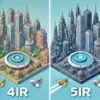
Teaching ‘4IR and 5IR’ for Grade 11

This content is located in CAPS under Internet Technologies: Internet and the WWW for Grade 11.

The Fourth Industrial Revolution (4IR) and Fifth Industrial Revolution (5IR) are transformative periods that define our interaction with technology and its impact on society. For Grade 11 learners, understanding these concepts is not only crucial for grasping technological advancements but also for appreciating their societal implications.

To make this theoretical content practical and relatable, consider using these engaging approaches:

Relating 4IR to Daily Life

Explain how 4IR focuses on automation and smart technologies. Use relatable examples such as:

  • Smartphones: Highlight features like virtual assistants, facial recognition, and real-time language translation.
  • Wearables: Discuss devices like smartwatches and fitness trackers.
  • IoT at Home: Use examples like smart fridges or voice-controlled lighting to illustrate interconnected devices.

Ask learners to list devices they encounter daily that fit into the 4IR paradigm. Challenge them to think critically about how these devices improve efficiency or present challenges, such as data privacy.

Exploring the Leap to 5IR

Explain that while 4IR emphasises technology’s efficiency, 5IR focuses on harmonising technology with human creativity and sustainability. Discuss:

  • Personalised Medicine: Customised health treatments.
  • Collaborative Robots (Cobots): Machines designed to work alongside humans safely.
  • Sustainable Technologies: Renewable energy and green computing.

Prompt learners to brainstorm examples of how technology can be human-centric, such as apps for mental well-being or robots assisting the elderly.

Hands-On Classroom Activities

  1. Design a Smart Device
    • Divide the class into small groups. Each group designs a smart device that addresses a real-world issue, like water conservation or reducing electricity usage.
    • Groups present their ideas, explaining how it reflects the principles of 4IR or 5IR.
  2. Data Flow Simulation
    • Use a flowchart exercise to demonstrate how an IoT device collects, processes, and transmits data. For example, a weather sensor that sends rainfall data to a weather app.
  3. Debate on Societal Impact
    • Organise a debate on topics such as, “Does 4IR make jobs redundant or create new opportunities?” or “Is 5IR the solution to environmental challenges?”
    • This activity encourages critical thinking and awareness of societal implications.

Real-World Connection: Invite Guest Speakers

Invite professionals working in tech industries to share how 4IR and 5IR influence their roles. For instance:

  • A software engineer explaining AI in customer service.
  • A renewable energy specialist discussing how green tech innovations align with 5IR.

Technology in Under-Resourced Environments

For schools with limited resources, adapt the activities:

  • Use posters or diagrams instead of digital presentations.
  • Explore free online tools or mobile apps that simulate IoT concepts.
  • Facilitate discussions on how technology can address local issues, such as healthcare or education challenges.

By linking these revolutions to practical, everyday scenarios, learners develop an appreciation for their transformative potential and the critical thinking needed to navigate a tech-driven world.

Teaching ‘An overview of the World Wide Web’ for Grade 10

This content is located in CAPS under Internet Technologies: Internet and the WWW for Grade 10.

The World Wide Web (WWW) is a fascinating and indispensable part of our lives. It revolutionized how we access and share information, making it a crucial topic for students in Grade 10. The WWW is a vast collection of interconnected web pages and resources accessed via the internet, often confused with the internet itself. The WWW is a service built on the internet, comprising websites and web applications designed for communication, education, entertainment, and much more.

Practical Ways to Teach the World Wide Web in Grade 10

Engage your students with relatable and hands-on activities to help them grasp the theoretical aspects of the WWW while making it relevant and exciting.

1. Describe the WWW

  • What it is: Explain how the WWW allows users to access multimedia content and services using web browsers.
  • Interactive Idea: Create a class activity where students sketch a flowchart illustrating the interaction between a web browser, the internet, and a website. This helps them visualize the process of retrieving data from the web.

2. Web Address/Uniform Resource Locator (URL)

  • Concept: Introduce URLs as unique addresses for locating resources on the WWW.
  • Activity: Ask students to identify and break down components of URLs (protocol, domain, path, etc.) from familiar websites like Google or their school’s website.
  • Hands-On Task: Have them create a URL for a mock webpage they might want to design, like a student blog or portfolio.

3. URL Shorteners

  • Purpose: Discuss how URL shorteners make lengthy web addresses easier to share.
  • Classroom Demo: Use free tools like Bitly to demonstrate how long URLs can be converted into concise links.
  • Practical Activity: Let students shorten a few URLs and share them with classmates.

4. Web Page, Website, and Hyperlinks

  • Define:
    • A web page is a single document on the WWW.
    • A website is a collection of related web pages.
    • Hyperlinks connect web pages and websites.
  • Interactive Activity: Divide the class into groups and assign each a specific task: creating a “mock website” by linking together individual “web pages” made of cardboard or paper. Use strings to represent hyperlinks, simulating website navigation.

5. Types of Websites

  • Categories:
    • Blog: A personal or professional journal (e.g., fashion blog, tech blog).
    • Wiki: A collaborative platform (e.g., Wikipedia).
    • Social Network: Platforms for connecting people (e.g., Facebook, Instagram).
  • Activity: Have students research one example of each website type and discuss its purpose and features.
  • Creative Task: Ask students to come up with an idea for a website they could build—whether it’s a blog about their hobbies, a wiki for their favourite games, or a new concept for a social network.

6. Web Applications

  • Examples:
    • Google Docs: For creating and sharing documents.
    • OneDrive: For cloud storage and file sharing.
    • Google Drive: A comprehensive suite for productivity.
    • Office 365: Microsoft’s cloud-based productivity suite.
  • Activity: Demonstrate one of these applications in class. For instance, show students how to collaboratively edit a document in Google Docs.
  • Task: Assign students to create and share a group document to brainstorm ideas for a class project.

7. Hyperlinks

  • Explanation: Hyperlinks are clickable links that take users from one web page to another.
  • Interactive Task: Have students insert hyperlinks into a mock document or presentation. If possible, guide them on creating simple HTML hyperlinks to demystify web design basics.

Teaching Tips for Under-Resourced Classrooms

  • Offline Approaches: If internet access is limited, simulate web pages and hyperlinks with printed materials or visual aids.
  • Collaborative Learning: Encourage group activities where students role-play as “web pages” connected via “hyperlinks.”
  • Free Tools: Use free web applications like Google Docs and Bitly to teach web concepts without incurring costs.

The World Wide Web offers countless opportunities to bring technology to life in the classroom. By incorporating interactive and real-world examples, you can make this theoretical topic accessible and engaging for your Grade 10 learners.

Have you tried any of these ideas in your classroom, or do you have others to share? Let us know your thoughts in the comments below!

Teaching ‘Safeguards against viruses and threats’ for Grade 12

This content is located in CAPS under Social Implications: Impact of Society for Grade 12.

Viruses and cyber threats are ever-present challenges in our tech-driven world. By understanding the risks and implementing safeguards, students can protect their systems and data. Teaching this topic effectively prepares them for real-world interactions with technology and underlines responsible digital citizenship.

To make this lesson engaging and relevant, bring the theoretical concepts to life through practical examples and hands-on activities.

Making it Real

1. Start with Analogies:
Explain the concept of viruses and cyber threats using a relatable analogy. For example, compare computer viruses to biological viruses. Discuss how both spread, how they can be prevented, and their impact on their respective systems.

2. Create a Threat Simulation:
Develop a classroom activity where students simulate a cyber-attack. Assign roles: some students act as hackers, while others are defenders implementing firewalls, antivirus software, and safe practices. This can be a paper-based or computer-based roleplay to demonstrate real-world scenarios.

3. Visual Learning Aids:
Use infographics showing how threats such as ransomware, phishing, and malware infiltrate systems. You can find resources online or create your own charts. Highlight prevention strategies like keeping software updated, avoiding suspicious links, and using secure passwords.

4. Antivirus Demonstration:
If resources allow, demonstrate how an antivirus scans and removes threats. Use a virtual environment or a tool like Windows Defender. For under-resourced settings, discuss antivirus interfaces through images or mock-ups, explaining how they work step-by-step.

5. Password Challenges:
Organise a password-strength competition. Have students come up with passwords, then test their strength using online tools like “How Secure Is My Password?” Discuss why strong passwords are critical and introduce two-factor authentication as an added layer of security.

6. Guest Speaker or Case Study:
Invite an IT security professional to talk about real-world experiences with cyber threats. Alternatively, use a case study of a famous cyber-attack (e.g., the WannaCry ransomware attack) to discuss the importance of preventive measures.

Accessible Activities for All Schools

Offline Security Practices:
Discuss physical security practices, such as locking devices and not sharing passwords. Encourage students to create a poster campaign about “Top 5 Tips to Stay Safe Online.”

Scenarios for Group Work:
Divide students into groups to brainstorm solutions to hypothetical scenarios, like identifying phishing emails or stopping malware from spreading on a shared network.

Use Local Context:
Incorporate examples of scams and security breaches relevant to South Africa, such as SIM-swapping or identity theft cases. Connect these to the importance of maintaining a secure online presence.

Bloom’s Taxonomy Integration

  1. Remember: Define key terms like malware, ransomware, and phishing.
  2. Understand: Discuss how different threats affect systems.
  3. Apply: Demonstrate antivirus scanning or identify phishing attempts from sample emails.
  4. Analyse: Evaluate the strengths and weaknesses of different security tools.
  5. Evaluate: Discuss ethical issues around hacking and cyber-crime prevention.
  6. Create: Have students design their own cybersecurity awareness posters or campaigns.

Engage students in a conversation about the impact of cyber threats on society. Encourage them to share personal experiences or thoughts on the importance of online safety.