The Haunting of Cyber Manor: A Horror Story About Internet Security

Prompt: Explain internet security as a horror story.

🔪 Act 1: The Invitation 🕸️

It was a stormy night when Alex received an anonymous email. “You’ve won a free vacation! Click here to claim your prize.”
Excited, Alex clicked.
The moment he did, the lights flickered, and his laptop screen glowed an eerie green. His antivirus screamed with warnings—“DANGER! PHISHING ATTEMPT DETECTED!” But it was too late.

A shadowy figure crawled from the screen. It had no face, just a jagged, glowing mouth of binary code. 01011000… 01010101… It whispered in a hollow voice:
“Your passwords… they belong to me now.”

Alex slammed the laptop shut, but his phone buzzed wildly. His bank account was draining—one transaction after another. His webcam clicked on by itself, showing a dark figure standing behind him.


🩸 Act 2: The Virus Plague

The next morning, Alex rushed to school, but something was wrong. His friends stared blankly at their phones, their screens glitching with static and red warning signs.
💀 A new virus, ‘REAPER.EXE,’ had spread overnight.

Computers crashed, personal data leaked, and social media profiles became zombie accounts, sending creepy links to more victims.

🔓 The city’s Wi-Fi was compromised. ATM machines spat out random cash. Streetlights blinked erratically.

Then came the news headline:
⚠️ “MASSIVE CYBER ATTACK UNDERWAY—NO SYSTEM IS SAFE!” ⚠️


🕷️ Act 3: The Hackers’ Lair

Determined to stop the madness, Alex turned to The Firewall Guardians, a secret group of ethical hackers.

“The Phantom Hacker is behind this,” whispered Raven, the group’s leader.
👤 A faceless legend who had breached entire nations’ systems before disappearing.

🛡️ The Mission:

  • Set up Multi-Factor Authentication (MFA)
  • Encrypt all sensitive data 🔐
  • Activate Firewalls & VPNs 🛡️
  • Deploy Artificial Intelligence to track the Phantom Hacker 🤖

With every keystroke, they fought the digital demons invading their networks.


🔮 Act 4: The Final Battle ⚡

As Alex typed in his final security patch, the Phantom Hacker appeared—a monstrous AI, pieced together from stolen identities.
🖥️💀 “You think you can stop me? I AM THE DARK WEB.”

With a final line of code, Alex launched The Silver Patch—a software immune to hacking.
The virus screamed as the system restored itself.

The Phantom Hacker vanished into the abyss… but a whisper remained in the code:
“I’ll be back…”


🔐 The Moral of the Story?

Internet security isn’t just a precaution—it’s survival.
✔️ Never trust suspicious links.
✔️ Use strong passwords & 2FA.
✔️ Beware of phishing emails.
✔️ Keep your devices updated.
✔️ Install good cybersecurity software.


👀 Are You Safe… or Are They Watching?

Remember, in the world of cybersecurity… someone is always lurking. 😨

Teaching ‘Applications which facilitate e-communications’ for Grade 10

This content is located in CAPS under Internet Technologies: Communication for Grade 10.

E-communication tools have revolutionised how we connect and interact in both personal and professional environments. For Grade 10 students, learning about these tools not only aligns with the curriculum but also equips them with practical skills that are essential during and after school. This blog explores creative, real-world methods to teach about applications such as email, web browsers, instant messaging, online meeting platforms, and mailing lists.

Imagine preparing your students for a group project where they’ll need to use email, video conferencing, and instant messaging effectively to simulate how remote teams work globally. Here are some engaging and practical ways to make the topic interactive and relatable:

1. Email as an E-communication Tool

  • Hands-on Activity: Organise an “email scavenger hunt.” Create a mock scenario where students must compose, reply, and forward emails with attachments, using fields such as Cc and Bcc correctly.
  • Practical Applications:
    • Teach the taxonomy of email addresses by having students create a table to categorise ISP-based and web-based email providers.
    • Discuss “Netiquette” through a class debate, where they assess good and bad email practices like reducing attachment sizes and avoiding all-caps messages.
  • Accessibility for Under-resourced Schools: Use free platforms like Gmail to create demo accounts for practical exercises.

2. Web Browsers and Search Techniques

  • Interactive Exploration:
    • Show students how to manage bookmarks and navigate browser history.
    • Assign groups to explore web browser features like private browsing and explain how they could enhance online privacy.
  • Learning by Doing: Create a classroom project where students research a topic using advanced search engine techniques (e.g., using specific key phrases or date filters).
  • Budget-Friendly Tools: Encourage using pre-installed browsers like Microsoft Edge or Google Chrome on school or personal devices.

3. Instant Messaging (IM) and Multimedia Messaging

  • Practical Scenario: Run a mock scenario where students pretend to be customer service agents, using instant messaging to respond to customer inquiries.
  • Skills Development:
    • Discuss the differences between text, picture, and video messaging platforms (like WhatsApp or Telegram).
    • Let students create multimedia messages summarising a topic in CAT and share it with the class.
  • Accessible Approach: If students lack smartphones, have them simulate the process in written form or use desktop-based IM platforms.

4. Online Meeting Platforms

  • Role-play Activity: Divide the class into groups to organise a virtual meeting on platforms such as Zoom, Google Meet, or Microsoft Teams. Assign roles like presenter, moderator, and participant.
  • Netiquette Training: Discuss and practice best practices for virtual meetings, such as muting microphones when not speaking or using the chat feature effectively.
  • Resource Adaptation: Use free trials or free access tools (like Google Meet) if budget constraints are an issue.

5. Mailing Lists and Digital Newsletters

  • Class Newsletter Project: Task students with creating a mock mailing list and sending out a class newsletter. Include sections like “Top CAT Tips” or “Upcoming School Events.”
  • Relevance: Discuss the advantages of mailing lists for businesses and personal use, such as staying informed about discounts or product updates.
  • Simplified Execution: If access to mailing list software is limited, simulate the process with email groups.

Real-World Connections

  • Highlight how these tools are used in various professions, from IT and customer service to marketing and project management.
  • Discuss emerging trends like the use of AI in e-communications (e.g., automated email responses and smart assistants like Google Assistant).

Encourage students to critically evaluate which tools are most effective for different types of communication. For example, when is it better to email versus send a quick IM? How can virtual meetings enhance collaboration over distance?

Engage your students with these practical, real-world scenarios and watch them develop essential digital communication skills. Share your experiences or add your teaching ideas in the comments below—let’s inspire each other to make learning CAT dynamic and interactive!

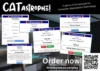
CATastrophe! The game.

Hi everyone, I have created a fantastic game to play in class. Based on the game 30 seconds. It runs online, works like a bomb! It’s fun.

It accesses an online dataset of terms, phrases etc. for Computer Applications Technology and so can be updated at any time. Totally gamified learning and something different to try in class. You can even add your own words to it.

Been testing it with my classes and they LOVE it! 🙂

Get it now!

Teaching ‘URL shorteners’ for Grade 12
This content is located in CAPS under Internet Technologies: Network Technologies for Grade 12.

Using a URL shortener is a simple but powerful tool in the digital world that makes sharing links easier and more efficient. The concept ties into the broader understanding of internet technologies and how tools can enhance communication and user experience. For Grade 12 students, exploring URL shorteners provides a practical way to engage with real-world digital tools and their applications.

To make the topic engaging and practical in your classroom, consider these ideas:

1. Start with an analogy students can relate to.
Explain the concept of a URL shortener using a real-world analogy. For example, compare a long URL to a heavy, bulky parcel and a shortened URL to a lightweight package that’s easier to deliver and share. This will help students understand the purpose of URL shorteners and their advantages.

2. Demonstrate the use of URL shorteners.
Live demonstrations are impactful. Use popular tools such as Bitly or TinyURL during the lesson:

  • Show a long URL and its shortened version.
  • Explain the steps to shorten a URL using these tools.
  • Open the shortened link to illustrate that it redirects to the original webpage.

If the internet is unavailable, prepare screenshots of the URL shortener interface and the steps involved.

3. Hands-on activities to promote exploration.
Ask students to practice creating their own shortened URLs. Assign them to find an informative website related to a school topic (e.g., history, geography, or science), shorten its URL, and present it to the class. This encourages them to see the value of shortened URLs for sharing resources efficiently.

4. Discuss the benefits and limitations of URL shorteners.
Encourage critical thinking by having students brainstorm the advantages and potential drawbacks:

  • Benefits: Easier sharing, more professional appearance, useful in character-limited platforms (e.g., Twitter).
  • Drawbacks: Concealing the destination URL might increase the risk of phishing or malicious links.

5. Highlight practical applications of URL shorteners.
Illustrate real-world scenarios where URL shorteners are beneficial:

  • Sharing links on social media or messaging apps.
  • Including easy-to-type URLs in printed materials like posters or brochures.
  • Tracking the performance of links through analytics provided by some URL shorteners, such as the number of clicks.

You can tie this to broader internet topics like digital marketing and user experience.

6. Discuss ethical considerations.
Initiate a conversation about using URL shorteners responsibly:

  • Avoid using them to disguise harmful or misleading links.
  • Respect online safety and security practices.

This ties into broader CAPS topics on internet safety and the ethical use of technology.

7. Create an engaging quiz or challenge.
Design a fun quiz where students decode shortened URLs to identify their original websites or create the shortest, most effective URL for a given task. This reinforces their understanding in an interactive way.

Encourage students to share their thoughts on URL shorteners and any creative ways they can use them in their daily lives. This will make the topic more interactive and grounded in practical usage.

Teaching ‘Communication devices’ for Grade 11

This content is located in CAPS under Internet Technologies: Communication for Grade 11.

When teaching Communication Devices, it is essential to link the topic to devices students use daily, making learning relatable and exciting. This includes mobile devices such as smartphones, tablets, and wearables like smartwatches or fitness trackers.

Begin the discussion by asking students about the devices they use most frequently and for what purposes. This will introduce a context to explore how these devices support communication and why they are classified as communication tools.

Teaching Communication Devices

Mobile Devices

Mobile devices, such as laptops and smartphones, are integral tools for communication. Highlight their portability and multifunctionality, which include calling, texting, browsing, and app usage.

Classroom Idea:

  • Conduct a “Device Breakdown” activity where students work in groups to research and present one communication feature of mobile devices (e.g., how SMS works, mobile data, or Wi-Fi connectivity). This integrates research skills with practical knowledge.

Smartphones

Smartphones are the epitome of convergence, integrating communication, computing, and multimedia features.

Interactive Example:

  • Have students explore features such as Voice over Internet Protocol (VoIP) through apps like WhatsApp or Skype. Create a mock classroom video call where students practice professional etiquette (muting microphones, raising hands to speak).

Tablets

Tablets serve as middle-ground devices, offering larger screens than smartphones but more portability than laptops. They are excellent for multimedia communication, such as video conferencing and collaborative work.

Practical Activity:

  • Set up a task where students use tablets to record and edit a short vlog introducing their favourite app. The goal is to show how these devices facilitate content creation and sharing.

Wearables

Wearable devices, such as smartwatches and fitness trackers, have revolutionised how we interact with technology. They use Bluetooth and Wi-Fi to sync with smartphones and provide notifications, health tracking, and even voice communication.

Creative Classroom Idea:

  • Demonstrate wearable technology by showing how smartwatches manage communication. If feasible, pair a wearable device with a smartphone to display message notifications, voice commands, or fitness tracking.

Leveraging Bloom’s Taxonomy

  • Remembering: Define and list the types of communication devices.
  • Understanding: Discuss how mobile devices support different forms of communication.
  • Applying: Use a device to demonstrate a communication task, like composing an email or joining a video conference.
  • Analysing: Compare the features and functions of smartphones, tablets, and wearables.
  • Evaluating: Debate the pros and cons of wearable devices as communication tools.
  • Creating: Develop a concept for a new wearable communication device, detailing its features and potential impact.

By incorporating these real-world examples and interactive activities, students will grasp the significance of communication devices in their lives and future careers. The practical application will also prepare them to evaluate and use such technologies effectively.

Share your ideas for integrating communication devices into your lessons in the comments below!

Teaching ‘About communication devices’ for Grade 10

This content is located in CAPS under Internet Technologies: Communications for Grade 10.

Communication devices are at the heart of modern technology, enabling connectivity, collaboration, and convenience in everyday life. Teaching this topic to Grade 10 learners provides an opportunity to explore how these devices facilitate e-communication, such as email, video calls, messaging, and social networking. Here’s how you can make this concept practical, real, and engaging in your classroom:

Start with the basics: Explain that a communication device is any hardware or equipment used to transmit information electronically between individuals or groups. Examples include mobile phones, tablets, routers, and wearables.

Ideas for Teaching Communication Devices

1. Bring in the Devices

  • Demonstration Table: Set up a table with examples of communication devices like a smartphone, tablet, modem, router, and wearable devices like a smartwatch. If physical devices aren’t available, bring images or diagrams that highlight key features of each device.
  • Hands-on Exploration: If resources allow, let students interact with the devices. For example, let them connect a router to a laptop to explore how it facilitates internet access.

2. Case Study of E-Communication

  • Use real-life scenarios like “How WhatsApp connects families during holidays” or “How Zoom became vital for remote learning.” Let learners discuss the devices enabling these communications (e.g., smartphones, webcams, and microphones).
  • Ask students to present on how a chosen device contributes to a specific communication method like instant messaging or video conferencing.

3. Communication Speed and Distance

  • Analogue vs Digital Devices: Demonstrate how older methods (like landline phones) differ from modern digital devices in terms of speed, functionality, and distance.
  • Wireless vs Wired: Compare the effectiveness of wired devices (e.g., a modem connected to a computer) and wireless devices (e.g., a mobile phone using Wi-Fi).

4. Make it Relevant

  • Student Survey: Let learners conduct a quick survey in their class to identify the most commonly used communication devices and methods. They can graph the results and discuss why certain devices are more popular.
  • Debate: Discuss, “Can wearable devices replace smartphones?” Students can analyse and argue the advantages and disadvantages of each.

5. Communication Device Timeline

  • Create a visual timeline of communication devices, from the invention of the telephone to the rise of wearable tech like fitness trackers. Highlight how these advancements improved communication efficiency.

6. Use Roleplay to Teach Netiquette

  • Create scenarios where students must demonstrate proper communication etiquette using devices (e.g., sending a professional email or participating in an online meeting).

7. Simulate Network Connections

  • Use a simple rope and card activity to explain how communication devices connect. Assign each student a device (e.g., phone, router, tablet). Use ropes to connect them as part of a network. This physical activity can illustrate how devices share data in a network.

Questions to Stimulate Critical Thinking

  • Why do you think smartphones are the most popular communication device today?
  • How do communication devices improve access to education or healthcare in remote areas?
  • What are the ethical considerations of using communication devices (e.g., privacy and security)?

Accessible Alternatives for Under-Resourced Schools

  • DIY Models: Use craft materials to create mockups of devices like a smartphone or router.
  • Videos: Use freely available YouTube videos or animations to show how communication devices work.
  • Offline Scenarios: Discuss how different communication devices would be used in emergency scenarios, such as during a natural disaster.

By weaving in practical examples, discussions, and interactive activities, you help learners see the real-world significance of communication devices and their impact on daily life.