Game design activity

🎯 Your Mission

Create a fun game (online or physical) that helps people learn or practise computer literacy skills. Make it exciting, make it clever, and most importantly—make it teach something!

🧠 What to Think About When Designing Your Game

🎯 Who is your game for?
  • Is your game for Grade 7s? Your classmates? Younger students?
  • What do you want them to learn or practise? (e.g. Email rules, parts of a computer, how to use MS Teams)
🎲 What type of game will you make?
  • Will it be a board game or a digital game?
  • Can you play it alone or with others?
  • Will players compete or work together?
🧩 What style will your game be?

Here are some fun ideas:

  • Board game with cards and challenges.
  • Quiz game with points.
  • Escape room game where players solve puzzles.
  • Matching game like matching devices to their jobs.
  • Story game where players take on roles or characters.
📖 What’s your game’s story or theme?

A good story makes your game more exciting!

  • Example: “You’re trapped in a computer lab! Solve puzzles to escape!”
  • Or: “Protect the digital world from hackers!”

It can be short and sweet – just something fun that links everything together.

📜 How do you play? (Rules & instructions)
  • Write down the steps clearly.
  • How does someone win?
  • What happens if they get an answer wrong?
🧃 What do you need for your game? (Materials)
  • For physical games: Cards, dice, board, tokens, etc.
  • For digital games: Slides, clickable buttons, images, links.
💻 What will your game teach?

Pick 2–3 computer topics like:

  • What is a computer (Input → Process → Output).
  • Input and output devices.
  • Saving and organising files.
  • How to use MS Teams.
  • Netiquette and staying safe online.
  • Using email properly.
🧠 How will your game teach or test these topics?
  • Use question cards, mini challenges, or puzzles.
  • When players get something right, they can move ahead, earn points, or unlock clues!
  • You can also explain answers to help them learn.
🎨 How will it look?
  • Choose fun colours, neat writing, and readable fonts.
  • Keep it clean and clear.
  • Make it visually appealing!
⬇️ Download the Game Planner Template (MS Word Format)
Death of the Disc: A Director’s Cut

Prompt: “Be a world-famous director and direct a movie with actors and props, all while keeping the storyline about the reason we don’t really use DVD/CD ROM drives on laptops and desktops anymore.”


🎞️ Scene 1: A Hollywood Tech Tale

[Opening shot]
The camera pans across a glittering, hyper-futuristic movie studio. Neon lights flare, robotic cameras buzz, and an enormous clapperboard slams shut:
“Scene 1: Death of the Disc.”

🎬 Enter Chaz McByte, the coolest director in Digital Hollywood. With his slicked-back hair, pixel shades, and custom-made headset, he turns to the cast — a crew of anthropomorphic laptops and desktops — and shouts:

“Alright team, let’s give this old tech the send-off of the century! Action!”

[Dramatic orchestral score begins…]


🎭 The Plot:

Flashback: DVD’s Golden Days
In a dramatic montage, DVDs and CD-ROMs strut down a red carpet. People cheer. Laptops open wide with pride, showing off their shiny disc drives. It was the age of burning, reading, and installing from the mighty disc.

🎤 “Back in the day,” says a grizzled desktop in a flashback, “I used to install entire games and movies off these bad boys!”

But the music dims.


⚔️ Conflict: Enter Modern Tech

Suddenly, a new hero bursts in: SSD Flashbolt, a speedy storage drive wearing sleek chrome armour. Cloud icons swirl in behind him like a digital entourage.

“Old friend,” Flashbolt says solemnly, placing a USB-C hand on the DVD’s shoulder, “You were good… but times have changed.”

The DVD spins nervously.

“But… but people still love me!”

“Not enough,” interrupts Cloudia, a radiant holographic assistant. “You’re big, slow, easily scratched, and—let’s face it—most laptops have gone on a no-disc diet.”


🎬 The Director’s Monologue (a cinematic moment):

Chaz McByte walks onto the stage, holding a dramatic spotlight.

“We no longer need your bulk.
We’ve embraced the slim.
With streaming, flash drives, cloud syncing and lightning-fast SSDs…
…there’s simply no room for the disc in our bags or our BIOS!”


📦 Resolution: The Farewell

In a moving final scene, the old DVD drives are gently packed into crates marked “Outdated Props”. A sad violin plays.
A modern ultrabook walks past and whispers:

“You paved the way, disc. But now… we stream ahead.”

The sky glows with Wi-Fi signals. Drones zoom by carrying cloud storage crates. The cast bows. The curtain falls.

[CREDITS ROLL]


🍿 Moral of the Movie:

We don’t use DVD/CD-ROM drives much anymore because:

  • They’re bulky and slow

  • Easily damaged

  • Limited storage capacity

  • Most media is now streamed, downloaded, or stored in the cloud

  • USBs and SSDs are smaller, faster, and way more convenient

  • Modern laptops favour thin design – and disc drives don’t fit the vibe

🎟️ Coming soon to a lesson near you… “Revenge of the Floppy Disk (Not Really)”

The Deep Dive into Primary Keys: Unlocking the Ocean of Data!

Prompt:
Teach me about the purpose of a Primary Key in a database. You are a scuba instructor, and I am your very first student learning to dive.

The Deep Dive Explanation:

🎣 Scene opens beneath the waves of the digital ocean…


🧜‍♂️ [In the smooth, salt-soaked voice of your scuba instructor, Captain Keyton]

“Alright, rookie diver, listen up! Down here in the vast blue database sea, everything’s got a place, and everything must be found. Just like each fish has a tag, and each treasure chest has a unique lock — each row of data in our underwater database needs its own ID. That’s where the Primary Key comes in!”


🌊 Imagine our database is a coral reef, filled with thousands of sea creatures (aka records). Each fish might look similar — some clownfish, some eels, lots of info about them like colour, size, and favourite seaweed snacks.

But! How do we tell one clownfish from another? 🐠

That’s when the Primary Key makes its grand splash!


🌟 Purpose of a Primary Key:

  1. 🏷️ Uniquely identifies each record in a table.
    Just like how every diver has a unique air tank ID or every sea turtle has a tracking number — no two are the same!

  2. 🚫 No Duplicates Allowed.
    A primary key must be unique — if two creatures had the same ID tag, we’d never know who’s who. Chaos under the sea!

  3. 🔒 Cannot be Empty (No Null values).
    If a fish has no tag, how will we track it through the data current? That’s a no-no, diver.

  4. 🧭 Makes searching faster.
    With a primary key, we can zoom straight to the data pearl we want, instead of searching every corner of the reef.


🎓 Example Dive Log Table

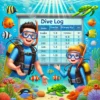
Dive ID (Primary Key) Dive Site Depth (m) Dive Time
001 Shark Alley 30 45 mins
002 Coral Canyon 20 35 mins
003 Wreck Haven 25 40 mins

🔑 See that Dive ID? That’s our primary key — no two dives will ever share it, even if they were at the same spot.


🧜‍♂️ “So, young diver, remember: when navigating the database depths, your primary key is your compass, your anchor, and your underwater passport all in one. Don’t leave the surface without it!”


💡 Moral of the (underwater) story:
A primary key keeps your data world in order — no drift, no confusion, just clean, trackable rows in the sea of information.

Teaching ‘All about Cookies’ for Grade 11

This content is located in CAPS under Internet Technologies: Internet and the WWW for Grade 11.

Cookies may seem like an abstract topic for students, but they are a practical, real-world part of internet usage that impacts almost every web interaction. Teaching Grade 11 learners about cookies offers an opportunity to demystify this concept and connect it to their everyday browsing habits, data privacy, and online experiences.

Making Cookies Tangible in the Classroom

Cookies can be explained as small text files stored on a user’s device by websites to remember information about their visit. To make this concept relatable, draw a parallel with a memory book that stores key details about a visitor to make future interactions more personalised.

Bring Cookies to Life with Visual Aids

  • Analogy Activity: Use physical sticky notes to simulate cookies. Write details like “username,” “preferences,” and “cart items” on notes and attach them to a learner’s shirt as they “browse” different desks (representing websites). Show how these notes help “websites” remember them when they return.
  • Digital Example: Visit a commonly used site (like a school website or news portal) and open the browser’s cookie storage settings to display what data is saved.

Exploring How Cookies Work

Break down the functionality of cookies:

  • Session Cookies: Temporary cookies that disappear after closing the browser. Compare these to short-term memory.
  • Persistent Cookies: These remain until manually deleted or they expire. Relate this to saving favourite contacts in a phone.
  • Third-Party Cookies: Stored by domains other than the website being visited, typically used for targeted ads. Discuss the ethical implications and privacy concerns.

In-Class Activities

  1. Cookie Classification Game: Prepare cookie “cards” with examples (e.g., “language preference,” “login session,” “ad preferences”). Ask students to group them into session, persistent, or third-party categories.
  2. Browser Exploration: Teach students to access cookie settings in a browser. Encourage them to delete specific cookies and revisit websites to observe the impact.

Privacy and Security

Cookies play a role in tracking and data privacy. Discuss:

  • Pop-Up Consent: Why websites request cookie permissions and what happens when users deny or allow them.
  • Tracking Concerns: Explain how third-party cookies enable targeted advertising, sometimes raising privacy issues.

Ethical Debate

Host a debate or discussion on:

  • Should websites limit third-party cookie usage?
  • Is tracking beneficial for customising online experiences or does it invade privacy?

Relating to the CAPS Curriculum

  • Introduce “Incognito” or “Private Browsing” modes to illustrate how they manage cookies differently.
  • Discuss the role of encryption and Secure Socket Layers (SSL) in keeping cookies secure during data transfer.

Simplifying Complex Terms

Use real-world analogies and interactive methods to clarify technical terms:

  • Cache vs Cookies: Cache stores website resources (like images) to load faster, while cookies store user data. Explain this as the difference between remembering the route to a friend’s house (cache) and remembering what snacks they like (cookies).

Encourage learners to reflect on their online behaviour and explore browser tools that manage cookies, empowering them to take charge of their data.

Teaching ‘Environmental issues with regards to computing.’ for Grade 12

This content is located in CAPS under Social Implications: Environmental Issues for Grade 12.

Understanding environmental issues related to computing is crucial for students as they become more aware of the digital tools they use and the world they inhabit. This topic opens the door to discussions on how technology impacts the environment, positively and negatively, and how individuals can act responsibly.

To make this topic practical and engaging, here are some hands-on, classroom-focused activities and teaching strategies:

Real-World Scenarios and Discussions

E-waste Awareness Campaign:
Start with a class discussion about electronic waste (e-waste). Ask students to bring examples of old devices (broken phones, outdated laptops, or other gadgets). Discuss what happens to these devices when disposed of improperly.

  • Use videos or articles that show the effects of e-waste on the environment and human health, especially in South Africa.
  • Ask students to research local e-waste recycling centres and create a list of resources for responsible disposal.

Green Computing Practices:
Introduce the concept of “green computing” by discussing practices like energy-efficient devices, turning off equipment when not in use, and reducing paper usage through digital communication and storage.

  • Provide a classroom challenge: How much energy can the class save by implementing green practices for one week? Use simple energy calculators or tools to track savings.

Hands-On Activities

Repurposing Old Hardware:

  • Ask students to brainstorm creative ways to repurpose old computer parts or devices. For example, old keyboards could be used for art projects, or hard drives could be transformed into clocks.
  • This encourages critical thinking (analysis and evaluation in Bloom’s taxonomy).

E-waste Art Competition:
Organise a competition where students create art from non-functioning computer parts. Not only does this promote recycling, but it also adds an element of fun and creativity.

Technology and Sustainability Exploration

Carbon Footprint of Technology:
Provide students with data or a tool to calculate the carbon footprint of producing and using their devices. This can lead to discussions about manufacturing, energy use, and life cycles of technology.

Debates on Responsibility:
Divide the class into groups to debate topics like:

  • Should manufacturers be more responsible for recycling e-waste?
  • Is it realistic for everyone to switch to energy-efficient devices?

These debates help students apply knowledge (applying and evaluating in Bloom’s taxonomy) and develop their argumentative skills.

Low-Tech Activities for Under-Resourced Schools

If your school lacks digital resources, you can still explore this topic creatively:
Case Study Analysis:
Present printed case studies on companies that have successfully implemented green computing practices. Discuss the environmental and financial benefits.
Role-Playing:
Set up a mock town meeting where students role-play as stakeholders discussing a proposed e-waste recycling initiative. This activity develops communication and problem-solving skills.

Links to Other Subjects

Encourage interdisciplinary collaboration with subjects like Life Sciences (to discuss environmental impact) and Business Studies (to explore the financial aspects of green technology).

For example:

  • Partner with Business Studies to create a marketing campaign for an eco-friendly product or service.
  • Work with Life Sciences to study the biological effects of toxic materials in e-waste.

Encouraging students to act as eco-advocates in their communities, spreading awareness about proper e-waste disposal and adopting green practices in their homes.

Teaching ‘The typical features of web browsers’ for Grade 11

This content is located in CAPS under Internet Technologies: Communication for Grade 11.

Teaching the features of web browsers can be an engaging and practical lesson for Grade 11 students, as it connects to their everyday use of technology. Web browsers are vital tools for accessing and interacting with the internet, and understanding their features can empower students to use them more effectively and securely.

To make the topic practical and relatable, focus on the following browser features and their real-world applications:

Bookmarks

Bookmarks are used to save frequently visited websites for quick access. Demonstrate how to create, manage, and organise bookmarks using folders. For example, have students bookmark their favourite educational websites, like Wikipedia, or online resources like Google Scholar. Encourage them to categorise bookmarks under subjects like “Science,” “History,” and “CAT” to practise organising information effectively.

History

The history feature tracks visited websites. Highlight its importance for revisiting useful websites or checking activity logs. For an activity, ask students to explore their browser history and identify useful educational sites they’ve visited recently. Discuss privacy considerations, such as clearing history on shared computers.

Home Page Settings

The home page is the first page that appears when opening a browser. Show students how to set an educational website, like their school’s online portal or a dictionary site, as their home page. This encourages productive browsing habits.

Caching

Caching stores temporary internet files for quicker access. Use a simple analogy like how memory works in a computer. Show them how caching improves browsing speed by reloading previously visited pages faster. Then, demonstrate how to clear the cache to solve common browser performance issues.

Add-Ons/Extensions

Extensions enhance browser functionality. Provide examples of useful add-ons like Grammarly for writing assistance, Honey for online shopping deals, or a PDF viewer. Guide students in searching for, installing, and managing these add-ons responsibly. Emphasise the importance of only downloading trusted extensions to avoid malware.

Adblockers/Pop-up Blockers

Explain how adblockers and pop-up blockers prevent unwanted interruptions while browsing. Discuss their role in improving browsing experiences and reducing exposure to potentially harmful ads. Show students how to enable or disable pop-up blockers for specific websites, especially for sites that require pop-ups for functionality (e.g., online learning platforms).

Private Browsing

Private browsing modes, like “Incognito” in Chrome or “InPrivate” in Edge, do not save history, cookies, or search data. Discuss scenarios where private browsing is useful, such as using shared or public computers. Have students compare private browsing to regular browsing to understand the differences.

Practical Classroom Activities

  1. Scavenger Hunt: Assign tasks like bookmarking a specific website, clearing the cache, or enabling a pop-up blocker. Students must demonstrate their understanding by performing the task and explaining its purpose.
  2. Extension Exploration: Pair students to research a browser extension. Each pair demonstrates how it works and discusses its benefits and risks.
  3. Privacy Discussions: Discuss the ethics and implications of browsing data and privacy. Debate topics like whether browsers should track user activity for targeted ads.

By connecting these browser features to students’ personal and academic lives, the topic becomes more meaningful and applicable. Integrating such practical examples ensures that students not only learn theoretical concepts but also develop essential digital literacy skills.