Teaching ‘Overview of online services’ for Grade 11

This content is located in CAPS under Internet Technologies: Internet and the WWW for Grade 11.

Engaging Grade 11 students in exploring the “Overview of Online Services” is an opportunity to make their learning highly relatable to real-world applications. The topic spans essential services like banking, online shopping, and booking/reservations, all of which are vital for understanding the digital landscape they interact with daily.

Making Banking Practical and Interactive

  1. Simulated Online Banking: Create a mock banking platform where students can “open accounts,” “transfer money,” and “pay bills.” This activity can be done using spreadsheets or basic database software to simulate transaction histories and account balances.Critical Thinking: Students can discuss the importance of secure passwords, encryption, and the role of HTTPS in online banking. This aligns with Bloom’s Analyse level as students dissect how online banking systems work.
  2. Identify Security Features: Have students explore an actual bank’s online banking interface (in a supervised, safe manner). Ask them to identify security features such as OTPs (One-Time Passwords), CAPTCHA, and encryption indicators.Real-World Connection: Discuss phishing scams and how to avoid them.

Simplifying Online Shopping

  1. Virtual Shopping Task: Assign a task where students shop for a set list of items (e.g., groceries, clothes, or tech gadgets) from various online stores. Have them compare prices, shipping fees, and payment options. Use this activity to teach about budgeting and the decision-making process.Evaluate: Students justify their choice of items and stores, highlighting cost-effectiveness, reliability, and user reviews.
  2. E-Commerce Security: Organise a class discussion or debate on secure online shopping practices, focusing on aspects like SSL (Secure Sockets Layer), two-factor authentication, and the risks of public Wi-Fi.
  3. Online Shopping in South Africa: Explore local e-commerce platforms (e.g., Takealot, Checkers Sixty60). Highlight the challenges of online shopping in under-connected areas, such as limited access to broadband.

Booking and Reservations: Skills They’ll Use

  1. Simulate Booking Systems: Use free online tools like Google Forms or Microsoft Forms to create a mock hotel or airline booking system. Students act as both customers and service providers, managing booking confirmations and cancellations.Apply: Students apply their knowledge to simulate real-world reservation scenarios, enhancing practical skills.
  2. Explore Local Services: Introduce local online services such as SA Airways booking systems or accommodation platforms like Airbnb. Highlight user interface design and usability.
  3. Scenario Analysis: Present scenarios where booking errors occur (e.g., double-booked tickets or incorrect dates). Students propose solutions, encouraging problem-solving skills.

Accessible Activities for Resource-Limited Schools

  1. Paper-Based Simulations: For schools without reliable internet, use printouts of e-commerce interfaces, bank statements, or booking forms. Students can role-play transactions or bookings using these materials.
  2. Class Discussions: Discuss how online services impact rural areas. For example, focus on challenges like limited delivery options or the role of mobile banking in expanding financial inclusion.
  3. Role-Playing Games: Simulate online shopping and banking by turning the classroom into a “digital marketplace” where students manage shops, banks, or travel agencies using tokens or paper-based systems.

Key Outcomes

This topic offers endless opportunities to blend theoretical learning with real-world application. By focusing on practical activities like simulations, role-playing, and problem-solving tasks, students will develop a deeper understanding of online services and their significance in daily life.

How do you teach these concepts in your classroom? Share your tips and experiences below!

The Little Bytes Image Prompt Builder

Create detailed image prompts to use in AI image generators. Use our image prompt builder to help craft the perfect prompt for the perfect image. The main aim of the prompt builder is to help you create prompts of people/characters in various contexts.

For example, create 3D cartoon style versions of your colleagues. Turn your students in caricatures or let them try it out and learn the specifics of image prompting.

Results will vary depending on the AI platform you use to generate. We suggest ChatGPT, Ideogram, Bing image Creator and Stable Diffusion. But there many more out there!

[siteorigin_widget class=”SiteOrigin_Widget_Button_Widget”][/siteorigin_widget]

A few samples from the prompts created from our Image Prompt Builder

Teaching ‘Netiquette’ for Grade 10

This content is located in CAPS under Internet Technologies: Communication for Grade 10.

Teaching ‘Netiquette’ to Grade 10 learners is an essential step in fostering responsible and respectful digital communication. Netiquette, short for “internet etiquette,” covers the rules and norms for appropriate behaviour online and in digital communications. This topic is highly relevant for learners as it prepares them to interact in increasingly digital social, educational, and professional environments.

One engaging way to introduce netiquette is by asking students about their online habits and experiences with digital communication. For example, you could ask, “Have you ever received an email or message that felt inappropriate or confusing?” This can serve as a relatable entry point into the discussion about online communication norms.

Here’s how teachers can make the principles of netiquette practical and relatable for Grade 10 learners:

E-mail and Social Media Platforms

  • Spelling and Grammar Checks: Highlight the importance of proofreading emails and messages to ensure clarity and professionalism. Let learners practise by correcting poorly written emails or crafting a concise and polite message.
  • Attachments: Demonstrate how to reduce the size of attachments by using file compression or sharing links to cloud storage. This can be taught through a practical activity, where learners compress images or documents and attach them to an email.
  • Avoid Typing in CAPITAL LETTERS: Explain how this is perceived as shouting in digital communication. A fun activity could involve showing learners a mock message in all caps and asking how it makes them feel.

Messaging Etiquette

  • Being Courteous and Concise: Role-play scenarios where learners write a professional email or direct message. Emphasise the importance of clear and polite communication, especially when requesting information or help.
  • Not Gossiping: Use examples of the harm gossip can cause online, including reputational damage and legal consequences. Discuss how learners can practise positive digital citizenship by refraining from spreading rumours.

Social Media Platforms

  • The Digital Footprint: Teach learners how every post or comment contributes to their digital identity. Use real-world examples to illustrate this concept and guide learners on how to maintain a positive online presence.

Practical Classroom Activities

  1. Mock Email Exercise: Provide students with a template of an email that violates netiquette rules (e.g., unprofessional tone, spelling errors, large attachments, and use of all caps). Ask them to rewrite the email following proper netiquette.
  2. Message Reconstruction: Show a short, poorly written social media post with incorrect grammar, capitalisation issues, and insensitive content. Challenge learners to rewrite the post to make it polite and professional.
  3. Group Discussion: Divide the class into small groups and let each group analyse and discuss different examples of good and bad netiquette, such as polite vs. aggressive online comments.

Integrating Real-Life Scenarios

Bring netiquette to life by discussing examples from the learners’ daily lives. For instance, you can simulate scenarios such as composing an email to a teacher, responding to a peer’s WhatsApp message about homework, or sharing a photo on social media responsibly. These scenarios make the lesson personal and memorable.

Encouraging Reflection

Wrap up the lesson by asking learners to write down one new netiquette habit they will adopt in their online communication. This reflection can help reinforce the importance of respectful and considerate digital behaviour.

By incorporating these practical examples and activities, teachers can make netiquette a tangible and engaging topic for Grade 10 learners. This will not only equip them with valuable skills but also instil a sense of responsibility in their digital interactions.

CATastrophe! – Game updates

If you have been playing Little Bytes’ game CATastrophe!, I hope your students have been enjoying it!

Here are some updates I have made and implemented

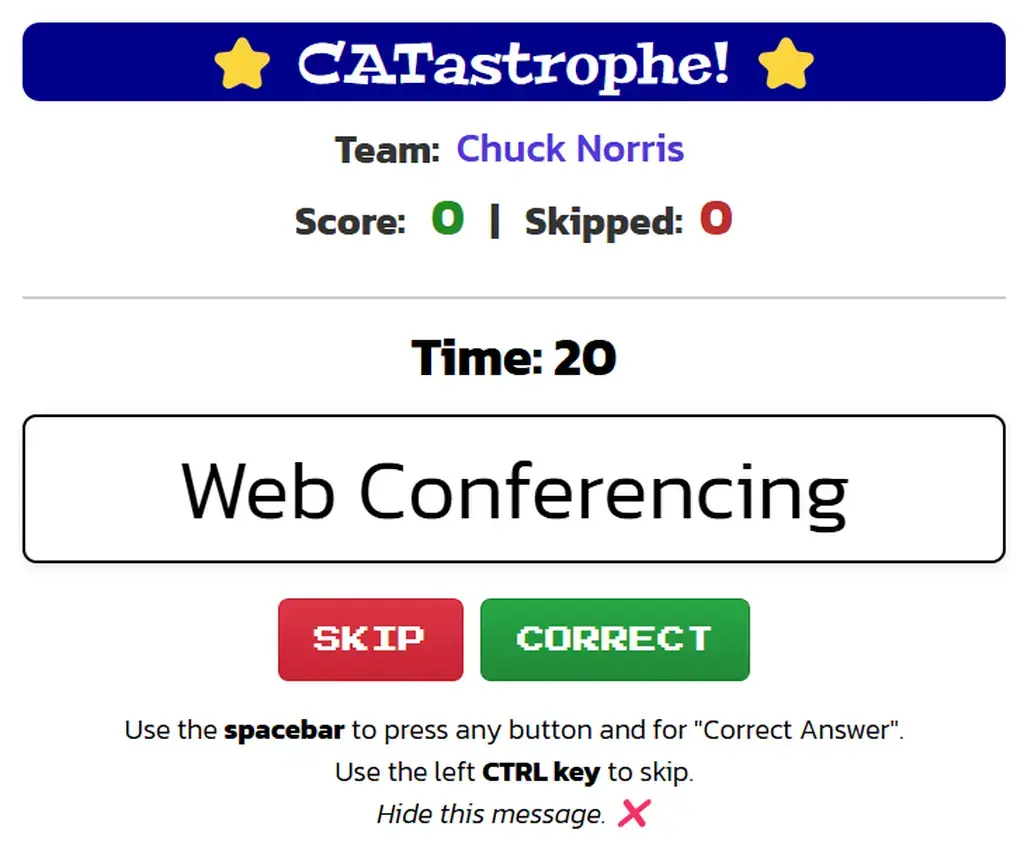
  • You can progress from one screen to the next using the space bar.
  • The space bar also acts as the “Correct” button.
  • The left CTRL key is to “Skip”.
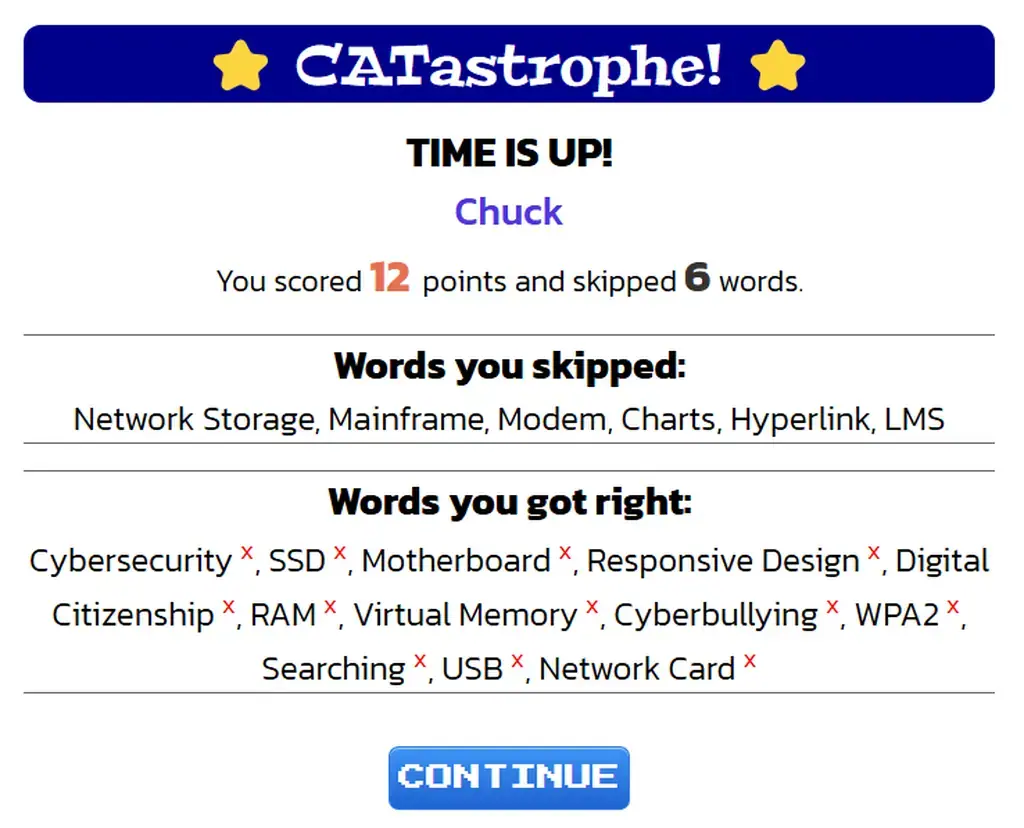
  • Multiple rounds are available and the score is tracked for all rounds.
  • If a student taps “Correct” by accident, giving their team a point unfairly, after the round is over, all the correct words are now also displayed and have a red X next to them. Clicking the X will remove the word and adjust the score accordingly.

Teaching ‘User-centred design in software applications’ for Grade 12

This content is located in CAPS under Social Implications: Impact on Society for Grade 12.

User-centred design (UCD) focuses on creating software applications tailored to meet the needs and preferences of end users. When teaching this topic, educators can illustrate how UCD impacts the usability and success of various software applications like websites, database forms, and presentations. Here are practical classroom strategies to make this topic engaging, relevant, and applicable.

Engaging with Website Design

Websites are one of the most familiar examples of software applications students interact with daily. Start by discussing websites that students find easy or difficult to use. Highlight elements of user-centred design, such as:

  • Navigation: A site should be intuitive. Compare examples of user-friendly sites (e.g., with clear menus and consistent layouts) against poorly designed ones.
  • Accessibility: Explain features like alternative text for images, contrasting colours for readability, and compatibility with screen readers.
  • Responsiveness: Showcase how sites adapt to various devices, emphasizing the importance of mobile-friendly designs.

Classroom Activity: Divide students into groups and have each group evaluate a website using a UCD checklist. Then, let them suggest redesign ideas based on identified shortcomings. For resource-limited environments, provide screenshots of websites and use paper prototypes to simulate their ideas.

Exploring Database Form Design

Database forms are used to input and manage data effectively. Teach students how UCD principles improve these forms by ensuring they are straightforward and error-proof. Key features include:

  • Clear Labels: Fields should have descriptive labels that are easy to understand.
  • Logical Flow: The form should follow a logical sequence, e.g., personal details before contact information.
  • Error Messages: Highlight the importance of providing helpful error messages when incorrect data is entered.

Practical Idea: Simulate a data-entry process in a school-related scenario, such as a library book registration form. Use basic database software (or even paper mock-ups) to demonstrate how poor design (e.g., missing fields or unclear instructions) can lead to errors and inefficiencies. Then redesign the form as a class exercise.

Enhancing Presentation Design

Presentations are a common tool for communication. Discuss how user-centred design ensures presentations are clear, engaging, and audience-appropriate. Focus on:

  • Visual Hierarchy: Emphasize the use of font sizes, colours, and placement to draw attention to key points.
  • Consistency: Explain the importance of using a consistent design, such as the same font and style across slides.
  • Simplicity: Demonstrate how less is often more by comparing cluttered slides with well-designed ones.

Interactive Exercise: Provide students with poorly designed slides and ask them to improve these slides using UCD principles. For classrooms with limited resources, students can sketch their redesigned slides on paper.

Bringing It All Together

To consolidate learning, engage students in a mini-project where they apply UCD principles to design a software application prototype. For example:

  • Scenario: Create a website for a local community project.
  • Tools: Paper mock-ups or simple presentation tools for design ideas.
  • Reflection: Have students present their designs, explaining how their choices align with UCD principles.

This project not only reinforces the topic but also encourages creativity and critical thinking.

By contextualising user-centred design within relatable scenarios, students gain a deeper understanding of how these principles impact the effectiveness and usability of software applications. Share your thoughts, ideas, or teaching experiences in the comments below—how do you teach UCD concepts effectively?