Teaching ‘Government internet services and information’ for Grade 11

This content is located in CAPS under Network Technologies: Networks for Grade 11.

Government internet services and information platforms like e-filing, TV licensing, and the Department of Home Affairs’ online systems offer a perfect real-world context to introduce students to the practical applications of networks. These services highlight how wide area networks (WANs), like the internet, enable efficient delivery of essential services.

To make this topic engaging and relatable, you can use practical, interactive activities that align with everyday scenarios students or their families might encounter.

Start the lesson by asking your students a thought-provoking question: “How many of you have seen someone in your family file taxes online, renew a TV licence, or apply for an ID at the Department of Home Affairs website?” This opening creates immediate relevance by connecting the topic to real-world activities they may have witnessed.

Ideas for Classroom Activities

1. Simulation of Online Government Services

  • Objective: Show students how e-government services work and why networks are essential.
  • Execution: Set up a simulation where students role-play scenarios like filing taxes online or renewing TV licenses. You can create mock websites using free tools like Google Sites or Canva with clickable menus to simulate navigating these services.
  • Outcome: Students learn the importance of user-friendly interfaces and secure networks.

2. Compare Network Types and Their Roles

  • Objective: Help students distinguish between different networks like LANs, WANs, and the internet.
  • Execution: Use the school’s Wi-Fi (LAN) as an example to show local access, and contrast it with the internet, which connects them to e-government services.
  • Activity: Assign students to research and present how these services depend on WANs to operate efficiently.

3. Identify Advantages and Limitations

  • Objective: Teach critical thinking about the benefits and challenges of online government platforms.
  • Execution: Split the class into teams and ask them to list the advantages (e.g., accessibility, reduced paperwork) and disadvantages (e.g., cybersecurity risks, bandwidth requirements). Encourage students to suggest improvements for these platforms.

4. Explore Internet Bandwidth and Data Costs

  • Objective: Make students aware of how data plans and internet speed influence the user experience.
  • Execution: Use advertisements for ISPs to compare broadband options. Discuss how factors like bandwidth, CAPs, and fair use policies affect government service access.

5. Evaluate Website Usability and Security

  • Objective: Introduce the concepts of accessibility and cybersecurity.
  • Execution: Have students evaluate the usability of mock e-government websites. Include tasks such as finding information or submitting a form. Discuss the importance of secure connections (e.g., HTTPS, digital certificates).

Relating Bloom’s Taxonomy to Activities

  • Remembering: Define network types and their roles.
  • Understanding: Explain how government services use networks to function.
  • Applying: Demonstrate navigating a government service online.
  • Analyzing: Compare advantages and disadvantages of online platforms.
  • Evaluating: Assess the usability and security of a simulated government website.
  • Creating: Design their own mock online service and discuss its requirements.

To bring inclusivity to the classroom, consider how students in under-resourced schools might experience limited internet access. Highlight offline solutions these government platforms often provide (e.g., downloadable forms). Reinforce the importance of accessible technology and equitable digital literacy.

Encourage students to discuss the services their families use and brainstorm ways these platforms could better serve communities with limited connectivity. This real-world connection ensures the lesson remains relevant and meaningful.


Teaching ‘How technology can benefit or harm the economy’ for Grade 10

Technology significantly influences the economy, bringing both benefits and challenges. While it drives efficiency, connectivity, and innovation, it also raises concerns about inequality, cybercrime, and ethical use. Teaching this topic to Grade 10 students allows them to explore how technology reshapes industries, creates jobs, or even displaces traditional economic structures.

Making the Topic Real for Students

1. Linking Technology to Economic Benefits

  • Idea 1: Role-play a Tech Company Pitch: Ask students to imagine they’re launching a new app or software product. They’ll prepare a short pitch highlighting how it could improve productivity or save costs in a business.
  • Idea 2: Local Examples: Research businesses in your area (like online stores, delivery services, or call centres) that rely on technology. Discuss how technology helps them operate and create job opportunities.

2. Exploring Economic Harms

  • Activity: Case Study Analysis: Divide students into groups and provide case studies of businesses disrupted by technology, like print media or traditional retail stores. Each group will discuss the negative impacts and present solutions to adapt to technological change.
  • Debate: Organise a class debate on “Does technology create more jobs than it destroys?” Encourage students to use real-world examples and statistics they research.

Introducing the Digital Divide

The digital divide refers to the gap between those who have access to technology and those who don’t. This can exacerbate social and economic inequality.

  • Visualisation Activity: Show students a map or graph highlighting internet connectivity rates in urban vs rural areas or among different income groups in South Africa. Discuss the implications for education and work opportunities.
  • Classroom Survey: Ask students to reflect on their own access to devices and the internet. What would change in their lives if they lacked access?
  • Problem-Solving Workshop: Challenge students to brainstorm and design simple, affordable solutions to reduce the digital divide, such as low-cost internet plans or community access centres.

Tackling Online Harassment and Cyberstalking

Online harassment, including cyberstalking, is a major concern in today’s connected world. Educating students about these risks helps them become safer, more responsible users of technology.

  • Interactive Scenarios: Present scenarios of online interactions and ask students to identify red flags for harassment or stalking. How should the individuals respond?
  • Group Research: Assign groups to research laws and measures in South Africa to combat online harassment. They can present findings in a poster or slideshow.
  • Role-play Activity: In pairs, one student can act as a support system for a victim of cyberstalking, exploring ways to report the issue and seek help.

Bringing it All Together

Conclude with an open discussion about the dual nature of technology in the economy. Ask students to reflect on how they can use technology responsibly to benefit their own futures and communities. Discuss real-life examples like the rise of remote work, e-learning, or mobile banking.

Encourage students to think critically about how technology can be a tool for both opportunity and disruption, shaping their understanding of the modern economy and their place within it.

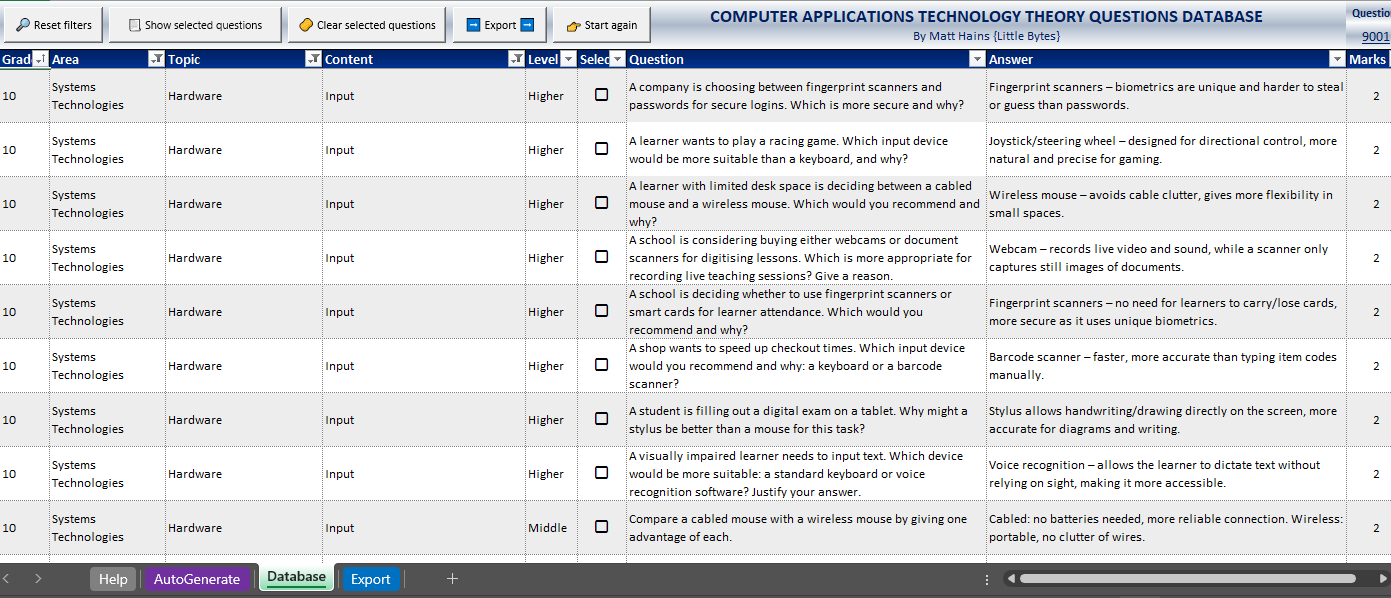
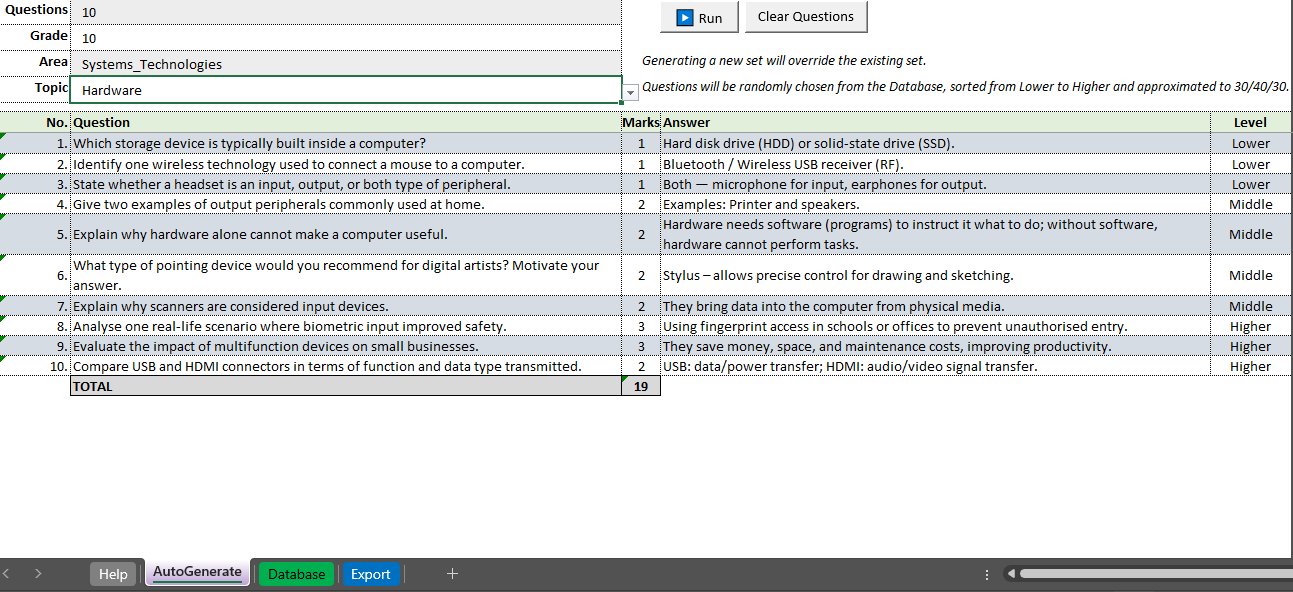
CAT Theory Questions Database

Do you find yourself struggling to come up with exam-worthy questions for your Theory assessments and exams?

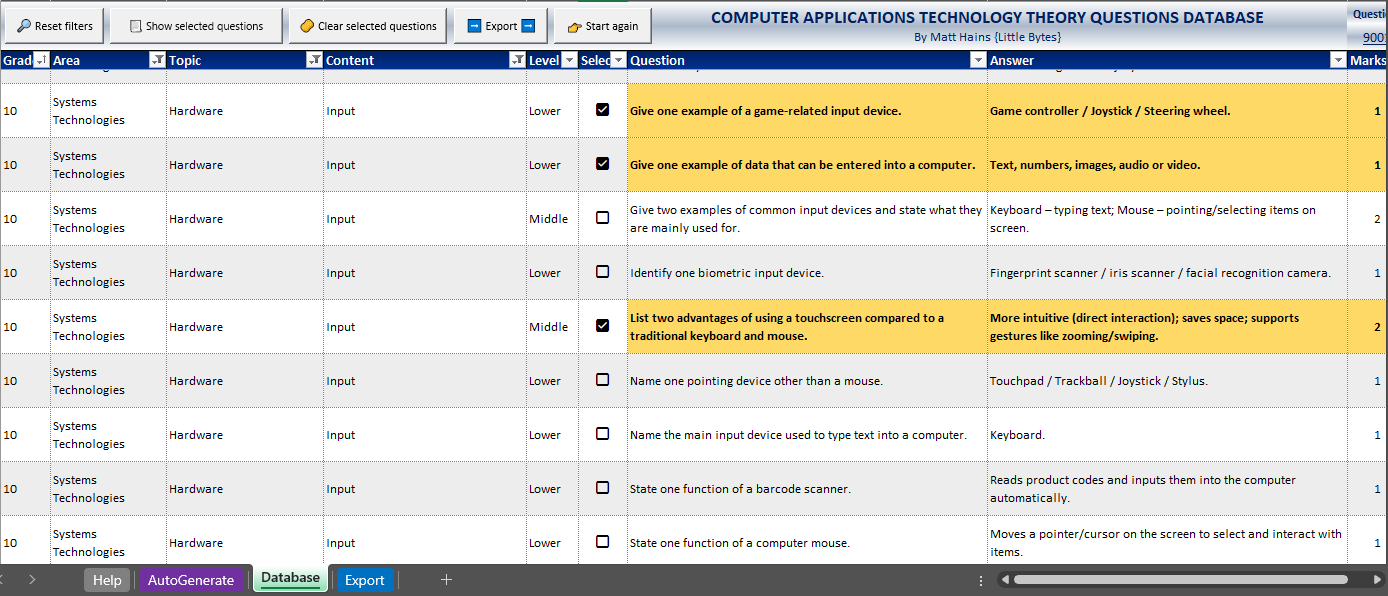
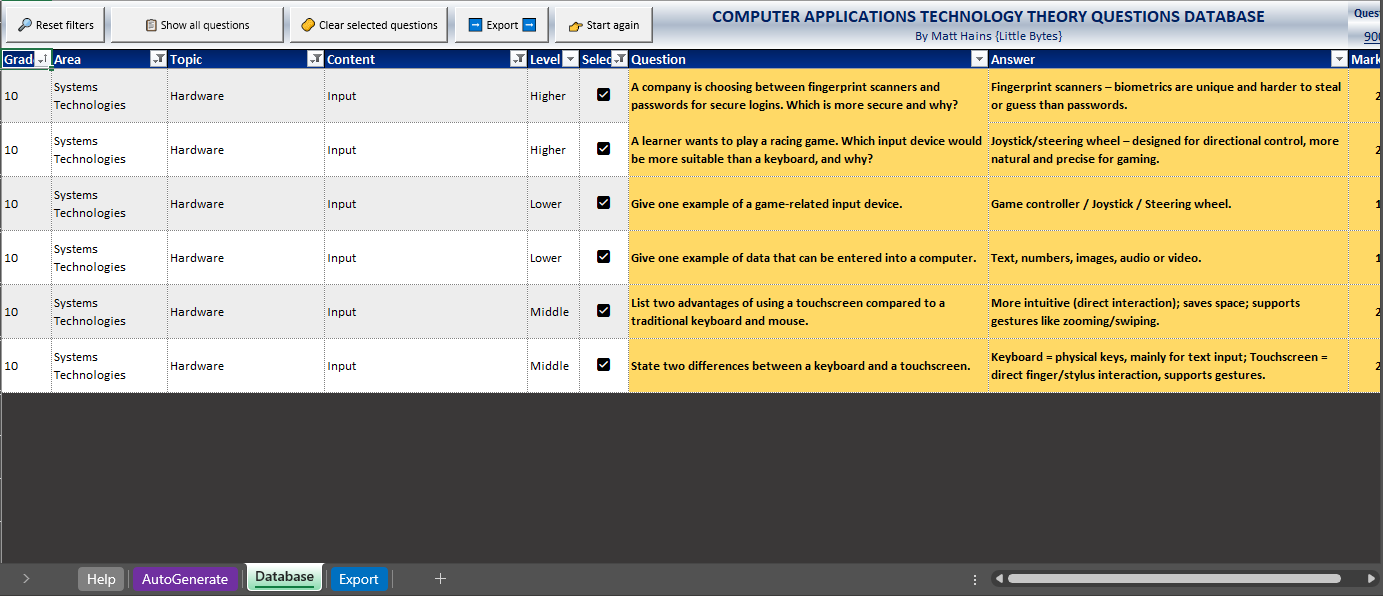
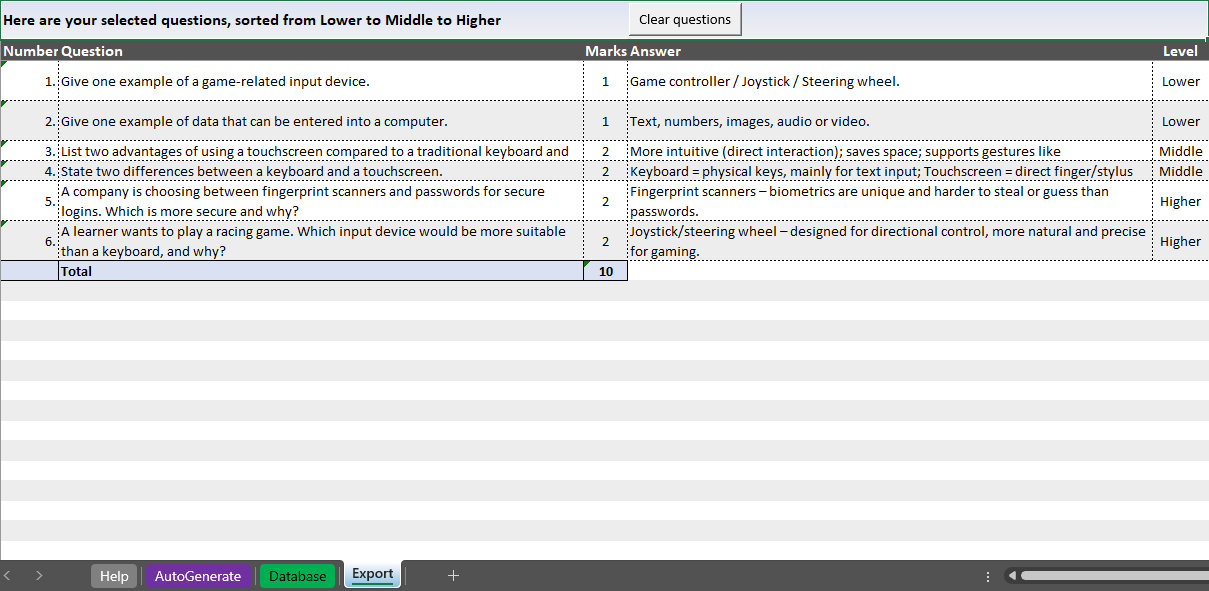
I have created a database of over 9000 CAT Theory questions based on every single area and topic from the CAPS curriculum for teachers to be able to put together scaffolded sets of questions (adjusted to 30% LOT, 40% MOT and 30% HOT) as quickly as possible for assessments and exams. However, what makes this database special is the fact that it is super easy to filter, sort and select questions you want and then have them automatically put into a worksheet you can print or copy and paste from.

For every single item in CAPS I have created three lower order thinking, middle order and higher order questions – resulting in at least 27 question variations for every item, including answers!

In addition, I also have an Auto-Generator tool which will automatically pick questions for a selected grade, area and topic for you if you don’t feel like selecting questions yourself! All questions come with answers and a mark allocation. Questions are always arranged from lower to middle to higher order.

Extra add-on feature

If 9000 questions are not enough for you, I have included an add-on which you can also purchase which will give you access to my specially-created Paths workbook consisting of over 300 “database paths” covering every aspect of the CAPS topics and exclusively designed to be used with my unique CAT Theory Question Database Assistant (on ChatGPT). The assistant is designed to generate 27 questions for every single path you give it. So, you can create even MORE questions for more variety if you want. You simply copy the path and provide it to the assistant, which will do the rest. The add-on is an extra purchase, it is not required for this workbook but does give you exclusive access to an AI assistant for continued question generation on any CAPS topic or sub-topic for any Grade in Computer Applications Technology.

Interested? Go get it now!

Click here to purchase the CAT Theory Questions Database and optional Paths add-on.

Teaching ‘Instant messaging, FTP, VoIP, Grid & cloud computing’ for Grade 11

This content is located in CAPS under Network Technologies: Networks for Grade 11.

Exploring “Internet Services” offers a chance to engage students with concepts they encounter daily but might not fully understand. Instant messaging, FTP (File Transfer Protocol), VoIP (Voice over Internet Protocol), and grid and cloud computing are vital for today’s connectivity. Here’s how teachers can make these abstract ideas relatable and practical in the classroom.

Begin by asking students how they use the internet daily—messages, videos, shared files, or even voice calls. This discussion can bridge into exploring these internet services conceptually and practically.

Instant Messaging

Introduce instant messaging by discussing platforms students use, such as WhatsApp or Telegram. Highlight key features like:

  • Real-time communication: Text, emojis, and multimedia.
  • Security: Encryption and privacy settings.

Activity Idea:
Ask students to role-play a customer service scenario where one acts as a customer, and the other is a representative. Use a simple free chat tool like Discord or Google Chat. Discuss how instant messaging impacts businesses globally.

File Transfer Protocol (FTP)

FTP is often invisible to most users but critical for moving files online. Simplify this by demonstrating with free tools like FileZilla or a cloud service’s file-sharing function.

Activity Idea:
Set up a mock scenario where students upload and download “files” to a shared folder. For example, simulate a design team sharing project files, highlighting the speed and efficiency of FTP versus email attachments.

Voice Over Internet Protocol (VoIP)

VoIP underpins platforms like Zoom and Skype. Discuss how this allows voice and video calls over the internet.

Activity Idea:
Set up a class VoIP call (e.g., using Skype or Google Meet) and compare the cost and setup versus traditional phone calls. Discuss bandwidth requirements and the role of latency in communication quality.

Grid Computing

Introduce grid computing as the power of multiple computers working together to solve problems, such as research simulations or rendering films.

Activity Idea:
Illustrate this by dividing the class into small groups (like a mini-grid). Assign each group part of a large “problem,” such as researching climate statistics or calculating a mathematical formula. Once all groups report back, discuss how breaking tasks into parts and processing them simultaneously mirrors grid computing.

Cloud Computing

Connect this to everyday tools like Google Drive or Dropbox. Discuss its benefits (storage, collaboration, remote access) and challenges (privacy, dependency on internet access).

Activity Idea:
Have students create a shared document in Google Docs. Ask them to brainstorm ideas together in real time, experiencing collaboration’s power. Alternatively, demonstrate how cloud storage saves local storage space while ensuring access from anywhere.

Accessible Implementation

In under-resourced environments:

  • Use free or trial versions of software like Skype or Google Drive.
  • Replace high-tech tools with collaborative physical activities, like using coloured paper to represent nodes in a network or cut-outs to visualise cloud storage.
  • Encourage discussions about scenarios rather than relying solely on demonstrations.

By engaging with familiar tools and real-world examples, these internet services transform from abstract ideas into meaningful concepts. Students will leave the lesson understanding not just the “what” but the “why” and “how” behind these essential technologies.

Teaching ‘Safety and Security Issues’ for Grade 10

This content is located in CAPS under Social implications: Impact on Society for Grade 10.

Teaching ‘Safety and Security Issues’ in Grade 10 provides a critical opportunity to help students understand the real-world consequences of unsafe digital practices and how to protect themselves online. As technology becomes an integral part of their lives, introducing topics such as e-mail threats, malware, and online criminal activities will foster awareness and responsibility.

To make the topic practical and relatable, start by illustrating everyday scenarios. For example, discuss how spam emails appear in inboxes, how clicking on malicious links can lead to phishing attacks, or how careless internet browsing can expose devices to ransomware.

E-mail Threats and Remedies: Explain common e-mail threats, including:

  • Hoaxes: Share examples of fake giveaways or false claims, and teach students to verify authenticity using trusted sources.
  • Spam: Show how email filters work and encourage them to avoid responding to unsolicited messages.
  • Phishing: Use real-life examples of fraudulent emails that mimic banks or companies, teaching them to check URLs and sender details.
  • Email Spoofing: Demonstrate how attackers fake the sender’s address and suggest reporting suspicious emails.
  • Pharming: Highlight how fake websites are created to steal sensitive information and how to identify secure websites (look for HTTPS).

Engage students with an activity: Ask them to create a checklist of signs to spot fraudulent emails.

Malware (Viruses, Trojans, Worms, Ransomware): Use accessible metaphors to explain malware. For example:

  • Viruses: Like a flu virus spreading from one person to another, computer viruses spread via infected files.
  • Trojans: Discuss how these mimic legitimate software but carry malicious intent.
  • Worms: Describe worms as self-replicating software that spreads across networks without user intervention.
  • Ransomware: Share real-world cases where individuals or organisations were locked out of files until a ransom was paid.

Ask students to brainstorm ways to protect against malware, such as using antivirus software, avoiding suspicious downloads, and keeping systems updated.

Safe E-mail and Internet Use: Introduce students to practical safety tips:

  • Use strong, unique passwords and enable two-factor authentication.
  • Regularly update antivirus and anti-malware software.
  • Back up critical files.
  • Avoid using public Wi-Fi for sensitive transactions.

Dangers and Tips for Ensuring Safe Use:

  • Discuss risks like identity theft, online stalking, and cyberbullying.
  • Create a classroom activity where students role-play scenarios to identify potential dangers and solutions. For example, a student pretending to be a scammer can try to lure another student into sharing sensitive information.

Computer Criminals – Types and Operations: Introduce types of computer criminals, such as:

  • Hackers: Both ethical (white-hat) and malicious (black-hat).
  • Cyberstalkers: Explain how these individuals use technology to harass victims.
  • Identity Thieves: Discuss how they steal personal information to commit fraud.
  • Scammers: Share examples like Ponzi schemes and fake charities.

For an interactive element, let students research a famous cybercrime case, summarise what happened, and present their findings to the class.

Bringing it Together: Host a “Cyber Safety Week” in your classroom. Assign students tasks such as creating posters on avoiding phishing scams, preparing a short presentation on malware types, or conducting a group debate on privacy vs. security online. Practical examples like these not only reinforce the lesson but also make it engaging and relevant.

Encourage students to reflect on their own online habits and share one tip they’ll implement to stay safe. Invite readers to share their teaching ideas or classroom activities related to this topic.