Games
Games Tools
Tools Exams
Exams Grade 10
 Grade 11
 Grade 12
 Resources
 Free Stuff
 Misc
Misc


Assessments That Don’t Suck: Creative PAT Ideas That Still Meet the IEB Standards
As a CAT teacher, I’ve learned that the secret to a successful PAT lies in relevance, creativity, and learner agency. Yes, we still need to stick to the IEB guidelines (and we do!), but that doesn’t mean we can’t have some fun along the way.
Step 1: Make the Topic Matter
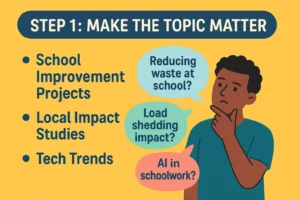 Pick a topic that means something to your learners. Instead of another dry survey on “transport methods” or “favourite foods,” challenge your learners to create a solution to a real-world problem.
Here are a few themes:
- School Improvement Projects – e.g., “How can we reduce waste at our school?” or “Should we switch to a 4-day school week?”
- Local Impact Studies – e.g., “How load shedding affects small businesses in Mbombela”
- Tech Trends – e.g., “Are learners using AI responsibly in their schoolwork?”
Give learners a voice in choosing the topic. A simple class vote can do wonders for buy-in.
Step 2: Gamify the Data
 Data collection shouldn’t feel like a chore. Teach learners to create engaging surveys using Google Forms or Microsoft Forms, and show them how to use branching logic to make questions interactive.
Bonus: It helps them analyse data with purpose later in Excel.
Want to take it further? Turn the PAT into a class competition:
- Best survey design
- Most creative chart
- Most insightful conclusion
Step 3: Guide, Don’t Dictate
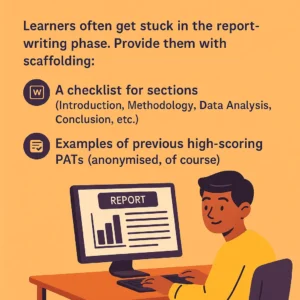 Learners often get stuck in the report-writing phase. Provide them with scaffolding:
- Templates for Word reports
- A checklist for sections (Introduction, Methodology, Data Analysis, Conclusion, etc.)
- Examples of previous high-scoring PATs (anonymised, of course)
I create a shared Google Drive folder with everything learners might need, and set up weekly milestones with small submission deadlines. It helps prevent the last-minute panic.
Step 4: Bring It to Life
 The PAT shouldn’t end as a static report on your desktop. Ask learners to present their findings—whether through a poster, a quick video summary, or a mock Shark Tank pitch where they “sell” their research.
This reinforces:
- Presentation skills (hello, LO & Life Skills crossover!)
- Digital literacy
- A sense of purpose
You could even invite other teachers to the presentations—learners love showing off.
Step 5: Keep the Standards, Lose the Boredom
 We’re not reinventing the wheel. The IEB PAT has clear outcomes: data collection, data analysis, Word processing, referencing, etc. All of that can still be done creatively. What changes is how we frame the task—and how much ownership we allow learners to take.
Final Thought: The PAT can be more than just a tick-box exercise. It can be the moment learners realise how powerful digital tools can be—and how they can use them to tell stories, solve problems, and change their world.
Let’s make PATs matter. And let’s make them memorable.
– Ruval Gouws | CAT Teacher, Creative Educator, PAT Enthusiast
“We don’t just teach tech. We teach how to think with tech.”