CATastrophe! – Game updates

If you have been playing Little Bytes’ game CATastrophe!, I hope your students have been enjoying it!

Here are some updates I have made and implemented

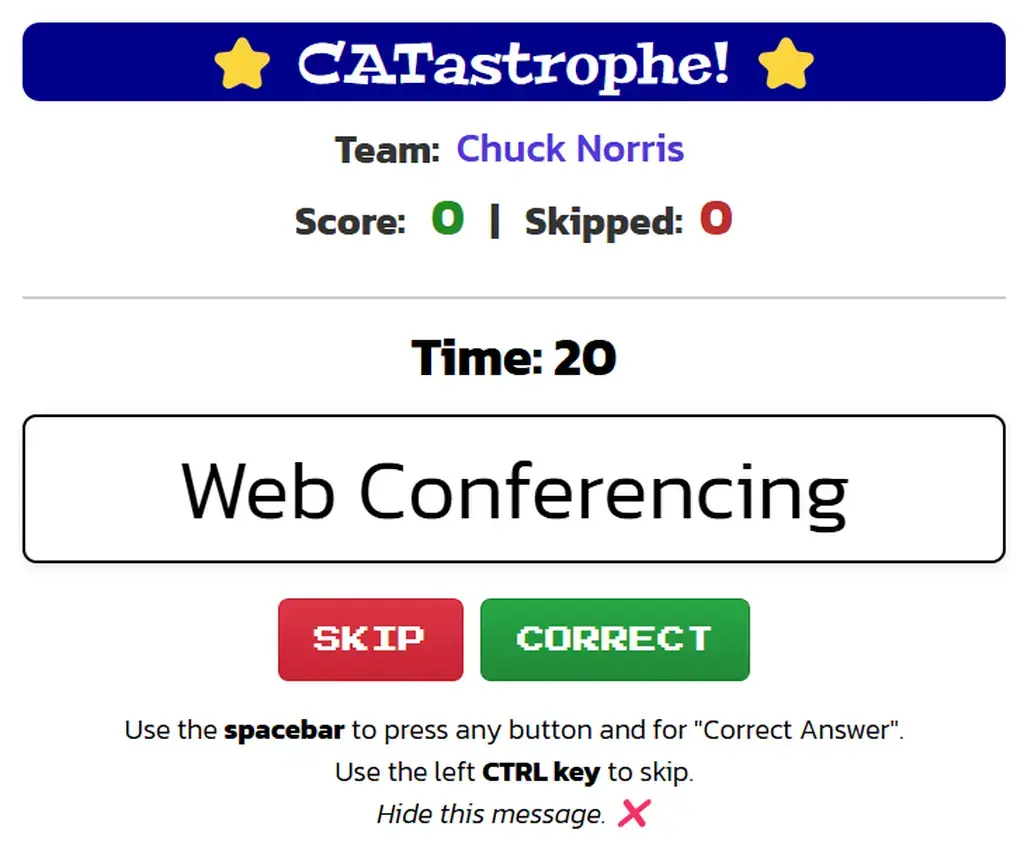
  • You can progress from one screen to the next using the space bar.
  • The space bar also acts as the “Correct” button.
  • The left CTRL key is to “Skip”.
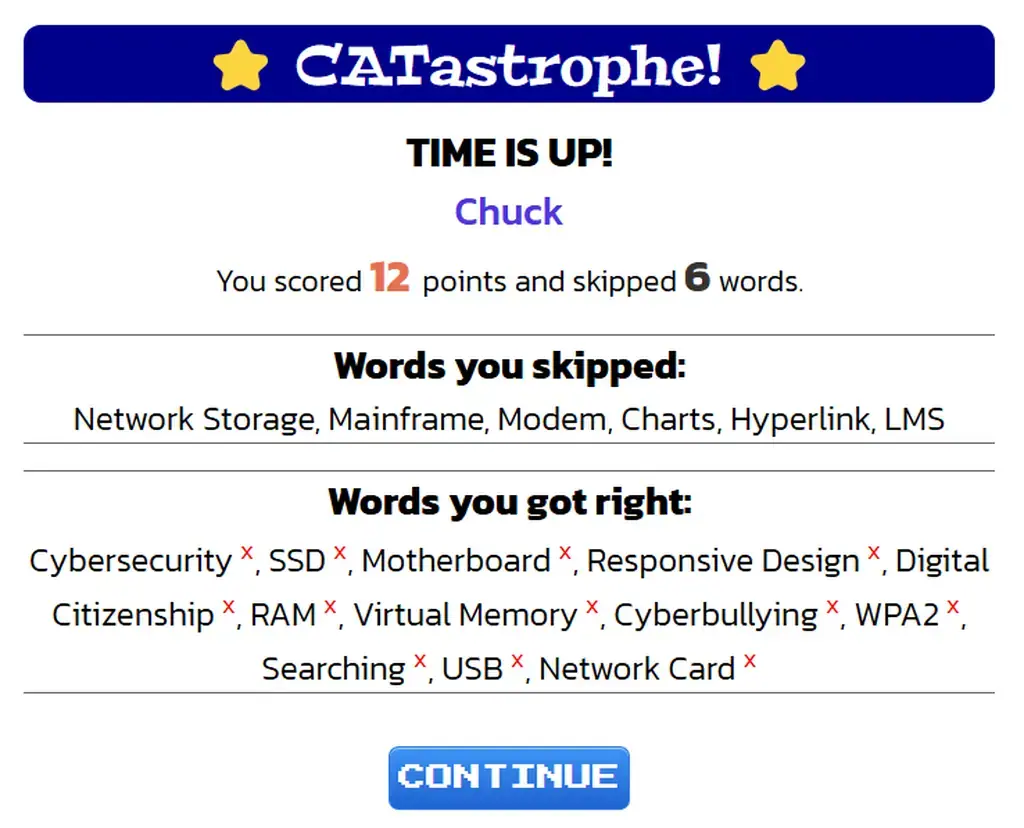
  • Multiple rounds are available and the score is tracked for all rounds.
  • If a student taps “Correct” by accident, giving their team a point unfairly, after the round is over, all the correct words are now also displayed and have a red X next to them. Clicking the X will remove the word and adjust the score accordingly.
Game design activity

🎯 Your Mission

Create a fun game (online or physical) that helps people learn or practise computer literacy skills. Make it exciting, make it clever, and most importantly—make it teach something!

🧠 What to Think About When Designing Your Game

🎯 Who is your game for?
  • Is your game for Grade 7s? Your classmates? Younger students?
  • What do you want them to learn or practise? (e.g. Email rules, parts of a computer, how to use MS Teams)
🎲 What type of game will you make?
  • Will it be a board game or a digital game?
  • Can you play it alone or with others?
  • Will players compete or work together?
🧩 What style will your game be?

Here are some fun ideas:

  • Board game with cards and challenges.
  • Quiz game with points.
  • Escape room game where players solve puzzles.
  • Matching game like matching devices to their jobs.
  • Story game where players take on roles or characters.
📖 What’s your game’s story or theme?

A good story makes your game more exciting!

  • Example: “You’re trapped in a computer lab! Solve puzzles to escape!”
  • Or: “Protect the digital world from hackers!”

It can be short and sweet – just something fun that links everything together.

📜 How do you play? (Rules & instructions)
  • Write down the steps clearly.
  • How does someone win?
  • What happens if they get an answer wrong?
🧃 What do you need for your game? (Materials)
  • For physical games: Cards, dice, board, tokens, etc.
  • For digital games: Slides, clickable buttons, images, links.
💻 What will your game teach?

Pick 2–3 computer topics like:

  • What is a computer (Input → Process → Output).
  • Input and output devices.
  • Saving and organising files.
  • How to use MS Teams.
  • Netiquette and staying safe online.
  • Using email properly.
🧠 How will your game teach or test these topics?
  • Use question cards, mini challenges, or puzzles.
  • When players get something right, they can move ahead, earn points, or unlock clues!
  • You can also explain answers to help them learn.
🎨 How will it look?
  • Choose fun colours, neat writing, and readable fonts.
  • Keep it clean and clear.
  • Make it visually appealing!
⬇️ Download the Game Planner Template (MS Word Format)
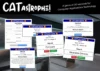
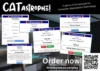
CATastrophe! The game.

Hi everyone, I have created a fantastic game to play in class. Based on the game 30 seconds. It runs online, works like a bomb! It’s fun.

It accesses an online dataset of terms, phrases etc. for Computer Applications Technology and so can be updated at any time. Totally gamified learning and something different to try in class. You can even add your own words to it.

Been testing it with my classes and they LOVE it! 🙂

Get it now!

Excel for CAT: CONVERT

Many teachers focus on Excel’s basic functions like SUM, AVERAGE, and IF, but one underrated function that can make data handling more powerful and real-world applicable is CONVERT. This function allows users to convert values between different measurement units—making it a practical tool in finance, science, and engineering.

The CONVERT() function is especially useful when working with temperature, weight, distance, and time conversions. Since students often work with various data sets in different units, understanding how to switch between them quickly can be a game-changer.

Why Teach CONVERT()?

  1. Brings real-world relevance – Students interact with different measurement units daily, from weather forecasts (Celsius vs Fahrenheit) to weight measurements in kilograms vs pounds.
  2. Enhances problem-solving skills – Using a function like CONVERT introduces logical thinking in solving real-life conversion problems.
  3. Reduces errors in manual conversions – Instead of memorising formulas, students can automate unit changes with accuracy.

How to Introduce CONVERT() in Class

Start by showing the basic syntax:

=CONVERT(number, from_unit, to_unit)
  • number: The value you want to convert
  • from_unit: The unit of the original value
  • to_unit: The unit you want to convert to

The best way to demonstrate this is through real-life scenarios that students can relate to.

1. Converting Temperature: Celsius to Fahrenheit

Ask students: Have you ever wondered how weather reports in the US differ from those in South Africa?

Example:

=CONVERT(25, "C", "F")

This converts 25°C to Fahrenheit. The output will be 77°F.

Classroom Activity:
Give students a list of city temperatures in Celsius and ask them to convert them to Fahrenheit using Excel.

Variation: Extend this by converting Fahrenheit to Kelvin or vice versa.

2. Converting Weight: Kilograms to Pounds

Scenario: Imagine you are shopping online for weights at an international store that only lists weights in pounds (lbs), but you need them in kilograms.

Example:

=CONVERT(10, "kg", "lbm")

This converts 10 kg to pounds (approx. 22.05 lbs).

Classroom Activity:
Provide a mock online shopping spreadsheet with product weights in kg and ask students to convert them to lbs.

Variation: Convert grams to ounces for cooking-related data.

3. Converting Distance: Kilometres to Miles

Scenario: A student is training for an international marathon and needs to convert distances from km to miles.

Example:

=CONVERT(5, "km", "mi")

This converts 5 km to miles (~3.11 mi).

Classroom Activity:
Provide a list of marathon distances in km and ask students to convert them into miles.

Variation: Convert cm to inches for height-related comparisons.

4. Converting Time: Days to Years

Scenario: How old are you in years if you have lived for 5,000 days?

Example:

=CONVERT(5000, "day", "yr")

This converts 5,000 days to years (about 13.7 years).

Classroom Activity:
Ask students to calculate:

  • Their own age in days and convert it into years.
  • The time left until they turn 21 in both days and years.

Variation: Convert hours to minutes or seconds for a speed calculation exercise.

The CONVERT function is simple but incredibly powerful, bridging the gap between classroom learning and real-world application. By incorporating practical exercises around temperature, weight, distance, and time, students will better understand the importance of Excel beyond just number crunching.